Roblox creators have a new way to balance accurate physics against performance: CollisionFidelity = Tunable. Announced by the Roblox Geometry Team on September 17, 2026, the option adds a CollisionPrecision slider to MeshParts, giving developers more control over how closely a mesh’s collision shape follows its visible geometry.
The practical change matters for detailed props, narrow openings, vehicles, tracks, and other objects where a rough hitbox can make gameplay feel wrong. Instead of choosing only from fixed collision modes, creators can adjust the precision of a Tunable collision shape for each MeshPart. More detail generally means more computation and a more expensive collision representation.
Quick answer: Select a MeshPart in Roblox Studio, set CollisionFidelity to Tunable, then adjust the CollisionPrecision slider in Properties. Move it higher for more detailed collision geometry or lower for a simpler, cheaper shape. Test the result in the actual game before publishing.
What changed in Roblox collision geometry?
Previously, creators generally selected a fixed collision fidelity such as Box, Hull, Default, or PreciseConvexDecomposition. Each option made a different compromise between the visible mesh and the simplified physical shape used for collisions. Tunable adds a precision control within a single option.
A model’s rendered surface and its collision shape are not necessarily identical. Physics uses the collision representation to determine whether a player, vehicle, projectile, or moving object hits something. A visually accurate model can still have an awkward hitbox if its collision geometry is too broad, too coarse, or fails to preserve a narrow gap.

How the CollisionPrecision slider works
When a creator changes a MeshPart’s CollisionFidelity to Tunable, Studio exposes a CollisionPrecision slider. Raising the value asks the system to preserve more of the mesh’s detail in its collision geometry. Lowering it favors a coarser, less expensive approximation.
Roblox staff described the scale as qualitative, not as a percentage-error measurement. In the launch discussion, the team explained that the low end corresponds to Hull-like simplicity, while the high end aims for a near-exact decomposition where the mesh allows it. A value of 1 is not a guarantee of perfect, one-to-one collision accuracy.
The initial precision is selected based on mesh size rather than being one fixed default for every asset. Roblox recommends resizing MeshParts to roughly their intended dimensions before switching them to Tunable, so the size-aware starting point is more appropriate.

How to enable Tunable collision fidelity in Roblox Studio
- Open the experience in Roblox Studio and select the MeshPart you want to inspect.
- Make sure the mesh is close to its intended in-game size.
- Open the Properties window and find
CollisionFidelity. - Change the value to
Tunable. - Adjust the newly available
CollisionPrecisionslider. Increase it if narrow details or openings need better collision coverage; decrease it if a simpler shape is sufficient. - Turn on collision geometry visualization and compare the physical shape with the rendered mesh.
- Playtest the relevant interaction, such as walking through a doorway, driving over a track, or checking projectile contact.
- Publish only after testing the result in the gameplay situations that matter.
Do not automatically set every mesh to maximum precision. A small decorative object may not need a detailed collision shape, while a vehicle track or interactive mechanism may benefit from a more careful setup. The useful setting is the lowest cost that still gives reliable gameplay.
Better tools for inspecting collision shapes
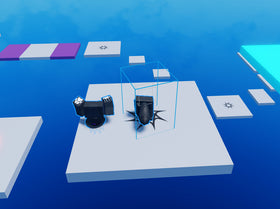
Roblox also described improvements to collision visualization. Creators can view the rendered mesh and collision geometry together, adjust the collision geometry’s transparency, and filter the visualization using properties such as CanCollide, CanQuery, CanTouch, and Collision Groups. Studio can also preview collision geometry while a creator edits CollisionFidelity.


Performance: what creators should watch
More precise collision geometry can cost more. Roblox said complex meshes with many vertices or faces may take up to about five seconds to compute the Tunable geometry the first time. After the precision levels are cached, moving the slider should feel smoother. Opening a place in a fresh Studio session can require the first computation again.
Roblox said it was working toward asynchronous processing and cloud-transcoded improvements. Those were described as future work in the announcement, not as capabilities creators should assume are already available.
Bulk-changing many complex MeshParts can temporarily pause Studio while synchronous calculations finish. Test a representative selection before changing an entire project. Identify meshes that actually cause collision problems, tune those first, and compare gameplay behavior and performance.
Will existing Roblox games change automatically?
No. Roblox said existing MeshParts keep their current collision geometry. The new option does not silently change older experiences. Creators who want to use Tunable on existing assets must manually switch the relevant MeshParts to Tunable and adjust the precision themselves.
The announcement also clarified that resizing a mesh does not currently regenerate its collision geometry automatically. Roblox asked creators for feedback on whether resizing should automatically recalculate precision or preserve and scale the existing collision shape. The team described an optional control as planned, so creators should not assume automatic resizing behavior is already implemented.
Known limitations and practical advice
- Very thin details: Some precise features can still produce imperfect convex pieces, especially when their dimensions are small relative to the overall mesh.
- Intersecting components: Meshes with many intersecting parts may produce unwanted collision shapes.
- Large, narrow meshes: Long tracks and similar assets may remain difficult because precision and memory limits can restrict decomposition detail. Roblox staff suggested splitting such meshes into more manageable pieces as a possible workaround.
- Avatar visualization: Roblox noted that the visualizer could show incorrect collision meshes for avatars while the team investigated the issue.
- Other workflows: At announcement time, APIs such as Solid Modeling did not expose a custom CollisionPrecision value and used the default precision when Tunable was used there.
A more detailed collision mesh is not automatically better if it adds cost without improving the player experience. Check the exact surfaces players interact with and tune only where the difference is meaningful.
What this means for Roblox creators
Tunable gives creators more control over a tradeoff they previously had to accept as a fixed preset. It is especially relevant to experiences built around detailed environments, vehicle handling, narrow passages, and physics-driven objects. The improved visualizers also make it easier to diagnose why an object looks correct but behaves incorrectly.
It is not a universal physics fix, and Roblox has acknowledged that some difficult meshes still need more work. But it gives developers a more flexible tool for matching collision behavior to the needs of a particular experience.
Related Roblox Studio coverage
- Roblox Shapecasts Upgrade: Better Collision Accuracy and Margins
- Roblox Character Controller Library Expansion
- Roblox Studio Package Overrides
Frequently asked questions
What is Tunable collision fidelity in Roblox?
Tunable is a MeshPart collision option that exposes a CollisionPrecision slider, allowing creators to balance collision detail against computational cost.
How do I get the CollisionPrecision slider?
Select a MeshPart in Roblox Studio and set its CollisionFidelity property to Tunable. The CollisionPrecision slider then appears in Properties.
Does a higher CollisionPrecision value improve performance?
Not usually. Higher precision creates more detailed collision geometry and generally costs more. Use only as much detail as the gameplay requires.
Does CollisionPrecision set to 1 mean perfect accuracy?
No. Roblox staff described the slider as a qualitative scale. The highest setting aims for a near-exact decomposition where possible, but it is not a guarantee of a perfect one-to-one hitbox.
Will Tunable change collision geometry in my existing Roblox game?
No. Existing MeshParts retain their current collision geometry unless creators manually change their CollisionFidelity setting.
Does resizing a MeshPart automatically update its collision geometry?
Not according to the September 17, 2026 announcement. Roblox said it was considering an optional resizing behavior and requested creator feedback.
Official sources
- Roblox Geometry Team: Collision Geometry Workflow Improvements
- Roblox Creator Hub: Meshes and collision fidelity
- Roblox Creator Hub: Collisions
Author: Shivam Das