Roblox Studio’s Server Inspection beta gives developers a clearer view of what happens on the server while collaborators test an experience together. Announced October 30, 2026, it adds a Server view to Team Test so creators can inspect the server’s Data Model, instance hierarchy, properties, 3D world, and supported server scripts. The update addresses a common multiplayer problem: a game may look correct to one player while the server holds different data or processes an event differently. The feature is still in beta, so its limits matter.
What Is Server Inspection?
Server Inspection is a Studio beta that opens a separate Server view during a Team Test session. Roblox says Studio establishes a second connection to the Team Test server. Once loaded, developers can switch between Client and Server perspectives much like in a regular Studio test.
The Server view reflects the live server Data Model, not just a local player’s view. Its instance tree, properties, attributes, values, and 3D world update from the server’s perspective. Runtime-created instances, such as cloned objects and spawned parts, can appear as the server creates them. This helps teams investigate replication problems and differences between what a client sees and what the server actually holds.
What Can Developers Inspect?
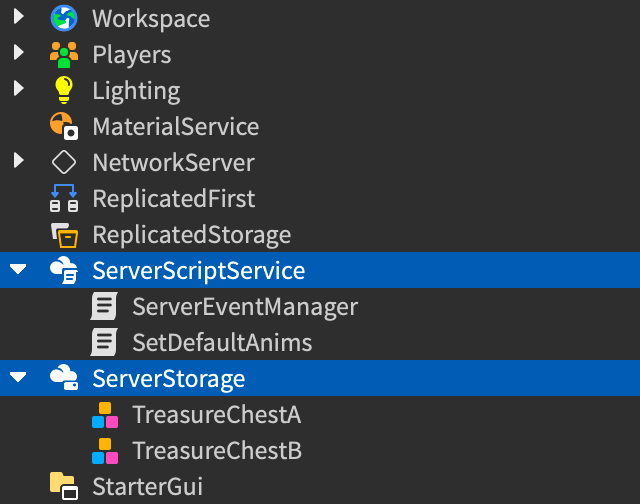
ServerScriptService and ServerStorage
The beta exposes two server-only containers in Server Explorer: ServerScriptService and ServerStorage. Developers can browse their contents and open supported Scripts and ModuleScripts stored there. Roblox has not said that every server-only service is available; its announcement lists only these two.
Live properties and runtime instances
Properties, attributes, and values update as server scripts run. Instances created at runtime can appear in the view, helping developers trace objects that are cloned, spawned, or changed by server logic.
The full place with StreamingEnabled
Roblox says the Client view continues to stream normally, while the Server view receives the entire place and does not stream content out. Developers can inspect distant areas even when those areas are not currently loaded in a player's client view.
Players from the server perspective
Players' characters move and animate in the Server view. That can help investigate character state and server-side behavior, although it does not replace testing on different devices or under different network conditions.

How to Enable Server Inspection
- Open Roblox Studio and choose File → Beta Features.
- Enable Server Inspection and click Save. Restart Studio if prompted.
- Open a place your team can edit through Team Create.
- Choose Team Test from the test-mode selector and click Start.
- Wait for the additional server connection to load, then switch between Client and Server views.
Using It With Remote Breakpoints
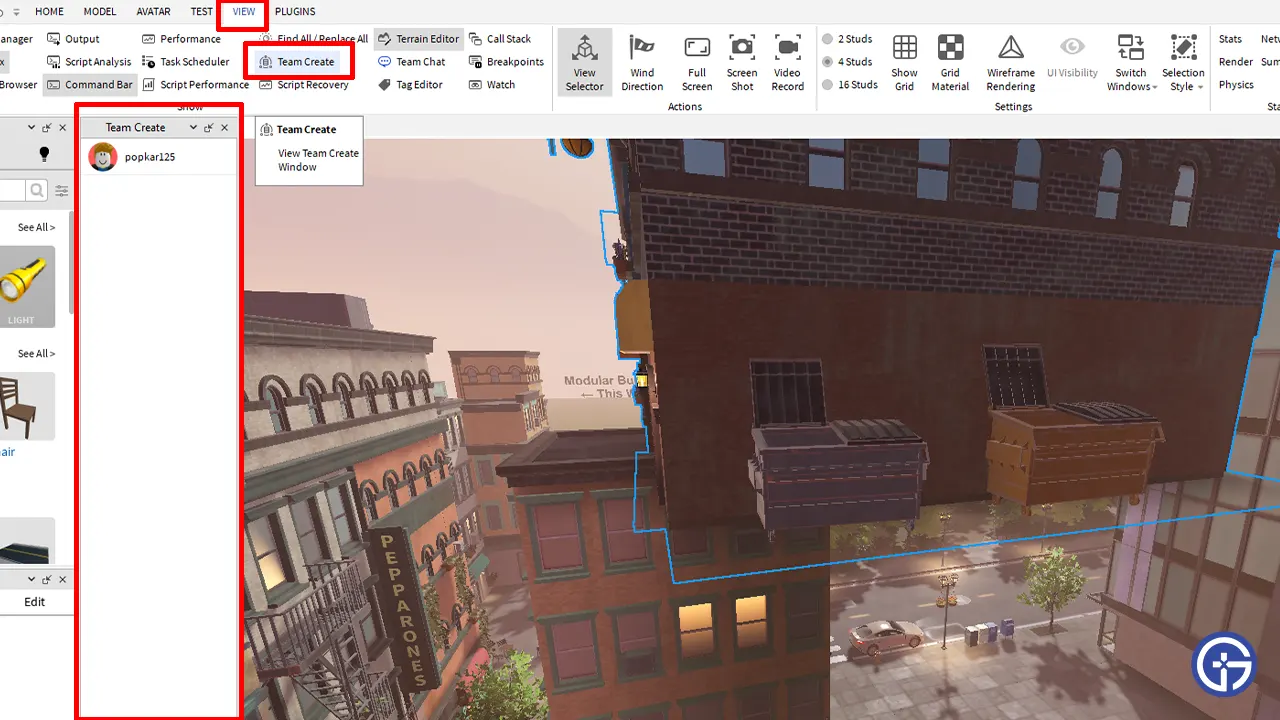
Server Inspection complements Roblox’s Team Test Remote Breakpoints beta, announced May 14, 2026. Remote Breakpoints lets developers pause and step through server scripts during collaborative testing. Server Inspection adds visual context by exposing the server-side Explorer, Data Model, and world view.
When a breakpoint is reached, Studio’s debugger can help inspect variable values and the call stack, then step through code. Roblox’s debugging documentation covers standard, conditional, and logpoint workflows, plus the Watch and Call Stack windows.

Important: only the person who started the Team Test session can use breakpoints to debug that server. Other participants still receive their own Server view, but their breakpoints are not used for the shared server session. Teams should decide who will lead debugging before testing.
Known Beta Limitations
-
Some script sources may appear empty. Roblox lists scripts created with
Instance.new("Script"), scripts loaded from assets, cloned scripts, and scripts in the Team Test client view. The announcement said fixes for cloned-script and client-view cases were planned for the following week; runtime-created script support was still being worked on. Check the official thread for later status. - Server-view editing controls are not fully locked. Explorer, Properties, Command Bar, and Script Editor may still allow edits. Roblox says those changes do not reach the live server and are discarded when the test stops. Do not use the view as a way to modify live server state.
- Script source is tied to session start. The view shows committed source the server was running when Team Test began. Later Edit-mode changes, new scripts, and uncommitted drafts will not appear in that session.
- Only two server-only containers are exposed. The announcement specifically identifies ServerScriptService and ServerStorage.
- Early startup breakpoints may be missed. Breakpoints in code that runs immediately as the server starts may not trigger.

Practical Tips for Multiplayer Debugging
- Reproduce the issue with a clear sequence of actions that collaborators can repeat.
- Compare Client and Server views to see whether an object or property exists on the server and whether the affected client sees it.
- Check
ServerScriptServicefor server logic andServerStoragefor server-only assets. - Have the session starter manage breakpoints.
- Commit code before starting a new Team Test session; restart after committing changes you want the server to run.
- Review sensitive assets before inviting testers. The Server view can reveal distant areas and server-only content.
- Keep using logs and other test modes to investigate client-specific, memory, and network problems.
Does It Inspect a Published Game’s Production Servers?
No. Roblox announced Server Inspection for Team Test sessions in Studio. It provides a view of the server used by that collaborative test session; it is not a tool for opening arbitrary public production servers. For published-experience issues, use the Creator Hub analytics, logs, and Developer Console tools available to your account.
What the Update Means for Roblox Developers
The main benefit is a smaller gap between what collaborators see on their screens and what the shared test server is doing. That can make replication problems, missing instances, server-side script behavior, and streaming-related confusion easier to investigate. But the beta is not a complete multiplayer diagnostics system: its view is not a live editing surface, script source is tied to session start, and breakpoint control belongs to the session starter. Developers who understand those boundaries can use it as a more informed debugging workflow.
Frequently Asked Questions
How do I turn on Server Inspection?
Open File → Beta Features, enable Server Inspection, and click Save. Restart Studio if prompted, then start Team Test in a Team Create place.
Can I inspect ServerScriptService during Team Test?
Yes. The current beta exposes ServerScriptService and ServerStorage in Server Explorer so developers can browse supported scripts and assets.
Can every participant use breakpoints?
No. Breakpoint debugging is scoped to the person who started the Team Test session. Other participants still have their own Server view.
Can I edit live server properties from this view?
No. Some controls may appear editable, but Roblox says changes made in Server view do not reach the server and are lost when testing stops.
Does it work with StreamingEnabled?
Yes. Roblox says the Client view streams normally, while the Server view receives the entire place and does not stream content out.
Will uncommitted script edits appear?
No. The Server view reflects committed source running when the session began. Commit changes and restart Team Test to inspect updated source.
Official Sources and Further Reading
- Roblox: Inspect Your Live Server During Team Test (October 30, 2026)
- Roblox: Team Test Remote Breakpoints
- Roblox Creator Hub: Studio Testing Modes
- Roblox Creator Hub: Debugging
- Roblox Creator Hub: Developer Console
By Shivam Das