Roblox Studio’s redesigned Device Simulator and integrated Network Simulator reached full release on October 16, 2026. The update gives creators a faster way to preview phone, tablet, desktop, console, and headset layouts while testing how gameplay behaves under different network conditions. Developers can switch simulated devices during a playtest and add latency, jitter, or packet loss without relying on an external network-throttling tool.
The key distinction: Device Simulator checks how an experience looks and responds to simulated screen dimensions and input; Network Simulator changes the conditions of Studio playtest traffic. Neither tool proves that a game will achieve the same performance on every physical device or real-world connection.
Quick answer: What changed?
- Full-release status: Roblox staff announced on October 16, 2026, that the redesigned Device Simulator was out of beta and available to everyone.
- Device switching: Change the simulated device from the toolbar while a playtest is running.
- Display scaling: Use physical-size, actual-resolution, or fit-to-window modes, with auto-detection available for physical-size scaling.
- Network testing: Simulate latency, jitter, and packet loss independently for inbound and outbound traffic.
- Custom profiles: Save network settings that your team can reuse for repeatable tests.
Editorial status note: Roblox’s October 16 Developer Forum update explicitly says the Device Simulator is out of beta. Some Creator Hub documentation pages still display older beta wording, so this article uses the dated full-release announcement for the release-status claim and the current documentation for feature behavior.

What the redesigned Device Simulator does
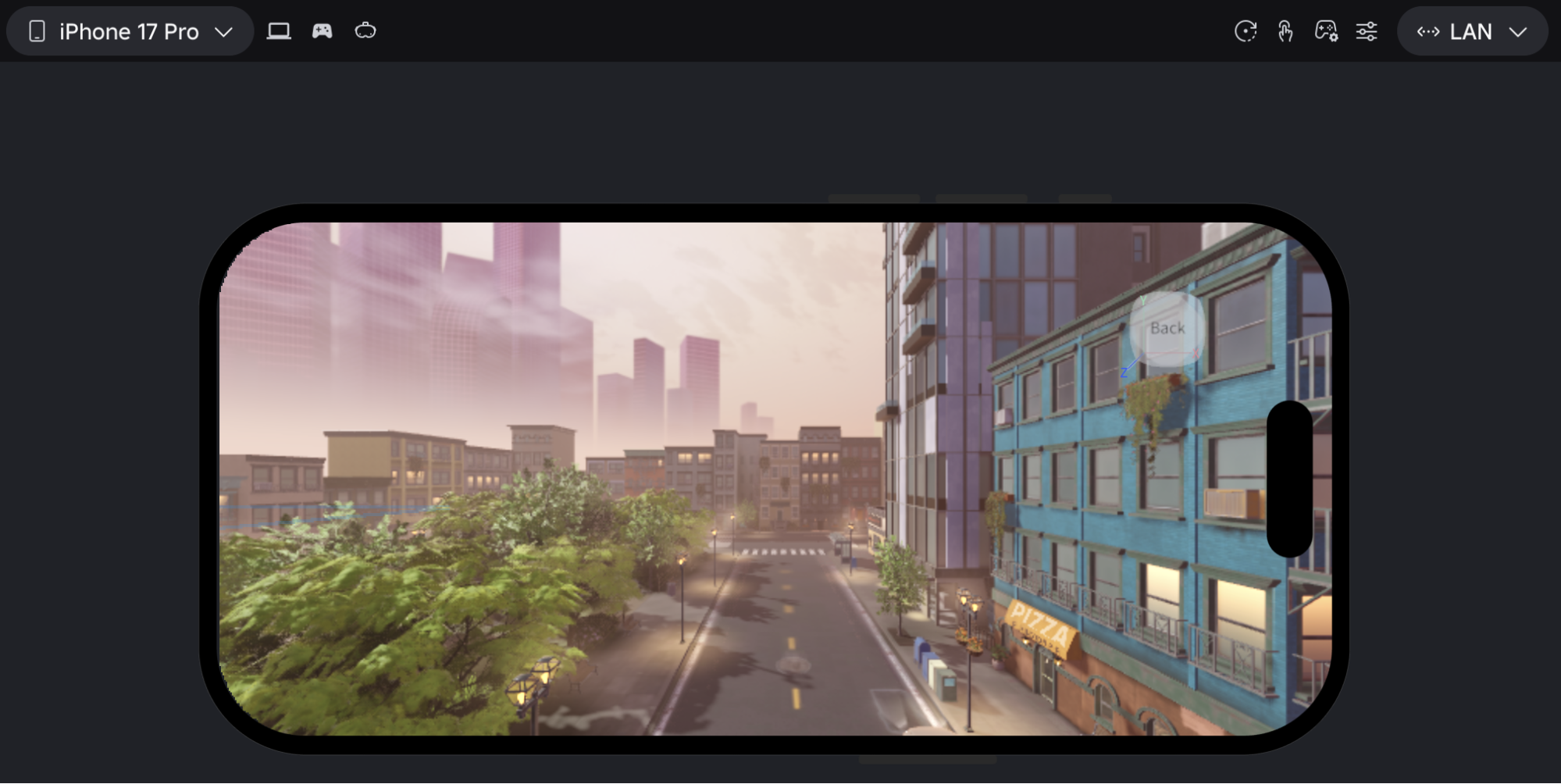
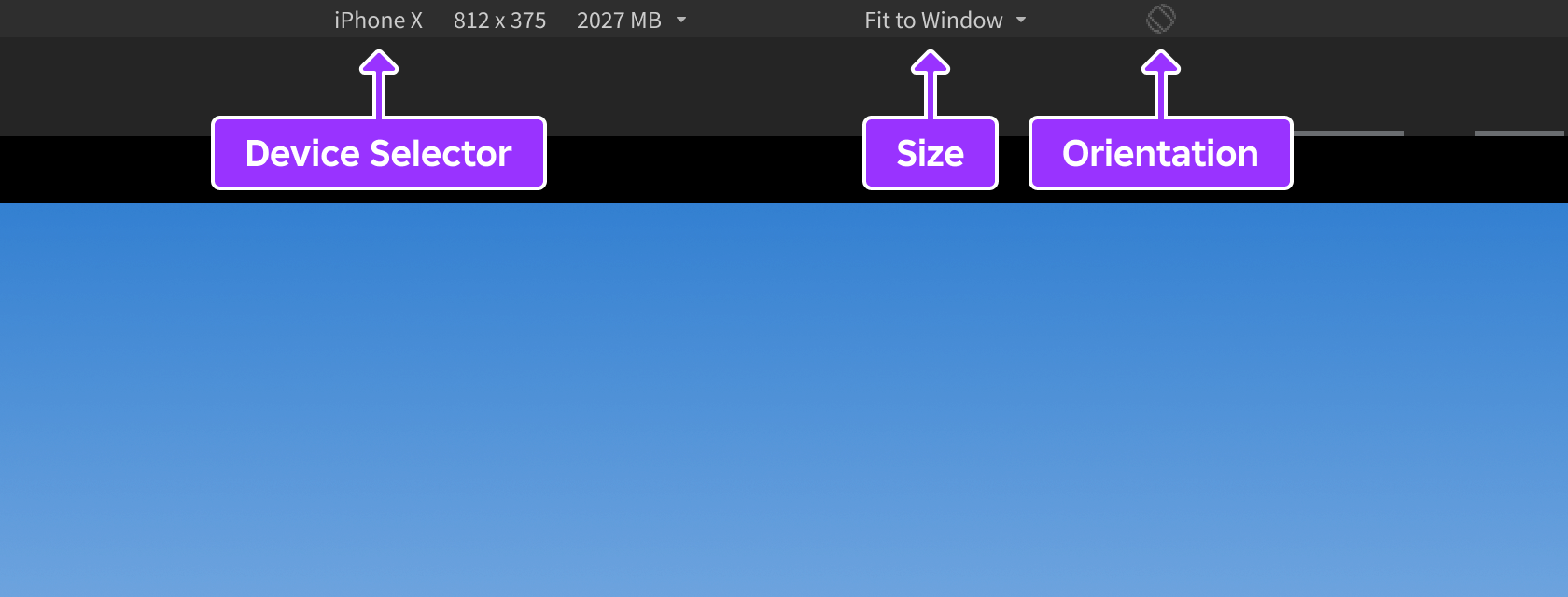
The Device Simulator places its controls in a toolbar above Studio’s 3D viewport. Instead of repeatedly stopping a test to change the emulated device, creators can switch device categories or select another profile while play mode is active. That makes it easier to spot responsive-interface problems during the same development session.
The available categories cover phones and tablets, desktop and laptop displays, console output, and VR headsets. Phone profiles are grouped into flagship, mid-range, and entry-level tiers. Creators can also build custom profiles for hardware or screen dimensions that are not represented by a built-in preset.
Switch devices without restarting a playtest
During a test, select the device chip in the toolbar and choose a different profile. You can compare a phone layout with a tablet, desktop, or console view without ending the current playtest. Roblox also added mouse-wheel device switching: hover over the device pill and scroll to move between devices.
Use this workflow to check safe areas, anchored interface elements, text readability, menu placement, and whether important controls remain visible at narrower screen sizes. A layout that looks correct on a desktop can still hide buttons behind a mobile keyboard or place touch targets too close together.
Understand display scaling before judging UI size
Device Simulator offers three display-scaling approaches:
- Physical size: Makes the simulated screen appear close to its real-world physical dimensions on your monitor.
- Actual resolution: Maps simulated pixels one-to-one to monitor pixels.
- Fit to window: Scales the simulated display to fit the available Studio viewport while preserving its aspect ratio.
Physical-size mode can use auto-detected display scaling based on the operating system’s reported display information. You can also calibrate physical scaling manually. This matters because a simulated 1080-pixel-tall phone and a 1080-pixel-tall computer monitor do not have the same physical size.
Network Simulator: test more than a fast connection
A game can feel responsive on a developer’s fast connection and become frustrating when players experience delay, unstable packet delivery, or dropped updates. Network Simulator helps reproduce those conditions inside Studio. It applies simulated network conditions between the playtest client and server, allowing creators to test client-server interactions before releasing a change.
The tool exposes three network variables in each direction:
- Latency: Adds delay to packets. Higher latency can make server acknowledgements and replicated state arrive later.
- Jitter: Varies the delay between packets. Inconsistent timing can make movement, animation, or replicated updates feel uneven.
- Packet loss: Drops a percentage of packets. Depending on the traffic and reliability behavior, this can cause missing updates or retransmission delays.

Inbound and outbound settings are separate
Inbound traffic travels from the server to the client. Outbound traffic travels from the client to the server. You can change one direction without changing the other, which is useful when diagnosing whether a problem is caused by a delayed client request or a delayed server response.
For example, a server-authoritative ability may feel fine when requests and confirmations arrive quickly. Add outbound delay to test how the client handles a slow request. Then add inbound delay to see whether the interface communicates that the server has not confirmed the action yet. Test both directions together to understand the combined experience.

Built-in network presets and custom profiles
Roblox Creator Hub documents built-in starting profiles for common connection types. The listed values are latency, jitter, and packet loss for inbound and outbound traffic:
| Preset | Inbound | Outbound |
|---|---|---|
| Ideal Fiber | 8 ms / 0 ms / 0.00% | 8 ms / 0 ms / 0.00% |
| Wired Broadband | 25 ms / 3 ms / 0.00% | 25 ms / 3 ms / 0.00% |
| Home Wi-Fi | 30 ms / 12 ms / 0.20% | 30 ms / 15 ms / 0.30% |
| Standard Mobile (4G/LTE) | 45 ms / 20 ms / 0.40% | 55 ms / 30 ms / 0.50% |
| Bad Connection (3G) | 150 ms / 70 ms / 0.50% | 180 ms / 90 ms / 0.50% |
These are repeatable test profiles, not promises about every Wi-Fi, 4G, or 3G connection. Actual network conditions vary by location, carrier, congestion, hardware, and time. Also note that the documented Ideal Fiber preset still adds 8 ms in each direction; it is not identical to a zero-added-delay custom setup.

To create a repeatable test, select a preset or edit inbound and outbound values, review the staged settings, and choose Apply. To reuse a custom setup, save it with a unique name. The saved profile can then be selected in later Studio sessions.
How to use the tools in a practical Roblox testing workflow
- Start with the player journey. Choose a real interaction to test, such as joining a server, opening an inventory, activating an ability, or moving through a streamed area.
- Check the interface on multiple devices. Switch between entry-level phone, flagship phone, tablet, desktop, and console profiles. Look for clipped menus, tiny text, unsafe touch targets, and keyboard overlap.
- Record a baseline. Run the same interaction under a normal or low-impairment connection and note response time, visible feedback, and any errors.
- Test a realistic connection. Apply Home Wi-Fi or Standard Mobile (4G/LTE), then repeat the same steps.
- Run a resilience test. Try Bad Connection (3G). Watch for stuck loading states, repeated requests, delayed confirmations, or movement that becomes difficult to understand.
- Isolate the direction. Change inbound or outbound values separately to identify which side of the client-server exchange exposes the issue.
- Fix and repeat. Keep the scenario and test steps consistent so you can compare the result before and after your code change.
For deeper diagnosis, compare your observations with the Developer Console and MicroProfiler. A network-related delay can coincide with a frame-time or server-performance issue, so do not assume every slow interaction is caused by ping alone.
What the simulators do not guarantee
Device Simulator is not a full hardware-performance emulator. It helps preview screen dimensions, pixel density, scaling, platform, and input behavior, but it does not prove that an experience will achieve a particular frame rate, memory footprint, or rendering result on the physical device. Test on real devices before making hardware-performance claims.
Network Simulator changes Studio playtest traffic only. It does not modify a published Roblox experience, change live players’ internet connections, or reproduce every characteristic of a mobile carrier or public network. Use it to expose weaknesses, then validate important fixes in realistic playtests.
Why this release matters to Roblox creators
The practical value is not simply that Studio has more buttons. Device switching during a running test reduces the friction of checking responsive interfaces, while network shaping makes it easier to reproduce conditions that are difficult to trigger consistently on a developer’s own connection. Together, they encourage creators to test the same player journey across different screens and connection qualities instead of relying on a single desktop, fast-network test.
For teams building competitive, physics-heavy, social, or server-authoritative experiences, that can reveal problems earlier: an ability that appears to activate twice, a progress indicator that never resolves, a UI panel that covers the mobile controls, or a replicated action that feels delayed. The tools do not automatically fix those issues, but they give developers a more repeatable way to find them.
Frequently asked questions
Is Roblox Studio’s new Device Simulator fully released?
Yes. Roblox staff posted an October 16, 2026 update stating that the redesigned Device Simulator was out of beta and available to everyone. Some Creator Hub pages may still show older beta wording.
Can I change devices without stopping a Roblox Studio playtest?
Yes. The redesigned toolbar supports switching simulated devices while a playtest is running. You can also hover over the device pill and use the mouse wheel to scroll between devices.
What does the Network Simulator test?
It adds latency, jitter, and packet loss to Studio playtest traffic. Inbound and outbound conditions can be configured independently to test client-to-server and server-to-client behavior.
Does Network Simulator affect my live Roblox game?
No. Roblox says the simulator shapes traffic in local Studio playtest sessions. It does not change the published experience or live players’ connections.
Does Device Simulator replace testing on a real phone or console?
No. It is useful for checking layout, scaling, and input behavior, but real hardware testing remains important for validating actual device performance and player experience.
Can I save my own network test settings?
Yes. You can configure custom inbound and outbound values, save them as a named preset, and reuse that profile in later Studio sessions.
Official sources and further reading
- Roblox Developer Forum: Full Release — New Device Simulator Toolbar and Network Simulator
- Roblox Creator Hub: Device Simulator
- Roblox Creator Hub: Network Simulator
- Roblox Creator Hub: Studio testing modes
Related coverage: Roblox Studio Server Inspection Beta and Roblox Studio’s if local and if const syntax.
By Shivam Das