Quick answer: Roblox Studio’s Package Overrides beta lets creators customize a linked package inside their own experience while keeping its connection to the original package. Studio records supported local changes as overrides and reapplies them when the source package updates. To try it, update Studio to version 743 or later, open File > Beta Features, enable Package Overrides, and restart Studio. The feature is still a beta, and important limits remain for scripts, Team Create consistency, and nested packages.
For Roblox developers, reusable packages solve a familiar production problem: the same vehicle, prop, environment piece, or code asset may appear in several places, and maintaining separate copies can make updates slow and error-prone. But a small local customization could previously put the developer in a difficult position. Keep the package link and risk losing a local edit during an update, or break the link and make future source updates harder to receive.
Roblox announced Package Overrides in Studio Beta on October 15, 2026, to address that trade-off. The important change is not simply that a package can be edited. It is that Studio can track supported local edits separately and reapply them when an updated source package arrives. Read Roblox’s official Package Overrides announcement.
What Package Overrides actually changes
A Roblox package is a reusable group of instances that retains a link to its source asset. Creators can reuse the package in multiple places, publish new versions, and update copies rather than manually rebuilding every instance. Package Overrides adds a way to make supported changes to one package copy without automatically giving up that source relationship.
Imagine a creator uses the same vehicle package across several experiences. One experience needs a different paint color, but the creator still wants the original package author’s later improvements—such as new wheels, trim, or model fixes. With overrides, Studio can preserve the local paint change while applying compatible updates from the source package. The source update and the local customization no longer have to be treated as an all-or-nothing choice.

How to recognize local overrides in Explorer
Roblox’s announcement describes visual indicators that help creators find local changes:
- Blue dot: An instance has a recorded override, such as a changed property, attribute, or parent.
- Green plus: An instance was added locally. Parent instances can also display an indicator so creators can locate the addition inside a nested structure.
- Revert control: The Properties window shows a revert icon beside overridden properties or attributes. Related properties can be linked, so reverting Color also reverts BrickColor.
These indicators matter because a package can contain many objects and nested elements. A clear visual signal makes it easier to see what is local, what came from the source, and where a developer may need to review a change before publishing or updating.

What happens when the source package gets an update?
When a package instance is updated, Studio applies its recorded overrides on top of the newer source version. If the source and the local copy changed the same property, the local override takes precedence. This gives a creator a way to retain a deliberate local adjustment while still receiving other changes from the package author.
There is an important exception: if the source update deletes an instance that had been overridden, Studio drops that override because the target no longer exists. Developers should therefore review important package updates instead of assuming every local customization will survive every structural change.
When a creator publishes the package, the overrides become part of the new package version. Roblox also says changes made inside nested packages are tracked as overrides on the parent package, so nested package updates need extra care.

Other Studio usability improvements included in the announcement
Package Overrides arrived alongside several workflow changes intended to make package maintenance less disruptive:
- Fewer warning dialogs: The warning interruptions that appeared when editing or reverting packages, including the Modified Packages dialog, were removed.
- Auto-Update on edited packages: Creators can keep Auto-Update enabled after making supported edits instead of automatically losing that option simply because a package was changed.
- Clearer package status: Icons and tooltips make it easier to tell whether a package is current, pinned, or pinned with updates available. A blue dot identifies a package with overrides.
- Parent publishing with modified children: A parent package can now be published even when it contains modified child packages.
- Full version history: Studio’s version history now displays every version and its notes, rather than stopping at the latest 50 versions.

How to enable Package Overrides in Roblox Studio
- Update Roblox Studio to version 743 or later.
- Open the place where you want to work.
- Choose File > Beta Features.
- Find and enable Package Overrides.
- Restart Studio.
- Select a linked package and make a supported local change. Check Explorer for override indicators and the Properties window for revert controls.
These are the steps in Roblox’s October 15 announcement. If the option does not appear, first confirm that Studio is updated to the required version and restart it after enabling the beta.
Important limitations creators should understand
Team Create: everyone should enable the beta
Roblox recommends that everyone in a Team Create session enable Package Overrides. Edits made in a Studio session where the beta is disabled are not tracked as overrides. A later package update may therefore fail to preserve those edits as expected. Teams should agree on the beta setting before making package changes together.
Script changes are not merged line by line
One of the most important limitations is script handling. Roblox staff explained in the announcement discussion that the initial release does not support merging local script edits with changes from the source script. A script is marked as overridden or not in its entirety; when it is overridden, the source script update is skipped rather than merged with the local version.
A staff member suggested a possible workaround: keep a shared script that calls an optional module, such as LocalFunctionality, and add that module only in places that need unique behavior. Adding an object is a supported override type, so this can separate local behavior from the shared script. It is a workaround, not a built-in script-merge feature.
Nested packages still need careful review
Roblox also documented a known nested-package issue. When updating a parent package, an override saved inside a nested package can sometimes be mistaken for a local edit. That can leave the nested item on an older value instead of applying the expected update. If your project relies heavily on nested packages, test the update on a safe copy and inspect the result before rolling it into a production place.
Turning the beta off can affect future override tracking
Roblox says creators can turn the beta off and their current place edits remain. However, Studio stops tracking overrides while the beta is disabled, and overrides already recorded may be lost for future update reapplication. In other words, the visible local edit may remain in the place, but a later source update may not preserve it as an override.
Is Package Overrides ready for every Roblox creator?
It is useful for creators who regularly reuse linked packages and need small, place-specific adjustments without disconnecting those packages from their source. The beta is especially relevant to teams maintaining shared environments, props, vehicles, and reusable models across several places.
It is not a universal solution for every asset pipeline. Teams that frequently customize scripts, rely on complex nested packages, or have collaborators using different Studio beta settings should test their workflow carefully. The best approach is to enable the beta consistently, make a small controlled change, update a test package, and confirm that the expected local values survive before applying the workflow to critical production assets.
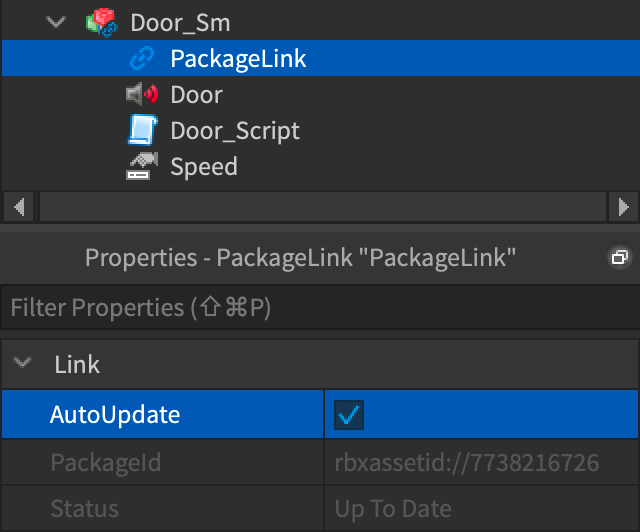
Roblox’s official package documentation remains useful for the fundamentals: creating packages, enabling AutoUpdate, publishing new versions, updating outdated copies, managing permissions, and reverting changes. See the Roblox Creator Hub Packages guide and the PackageLink reference.
Frequently asked questions
What are Roblox Studio Package Overrides?
Package Overrides is a Studio Beta feature that records supported local changes to a linked package and reapplies them when the source package updates. It lets creators customize a package copy while keeping its source relationship.
How do I turn on Package Overrides?
Update Roblox Studio to version 743 or later, open File > Beta Features, enable Package Overrides, and restart Studio.
Will a package update overwrite my local changes?
In general, Studio reapplies recorded overrides after an update. If both the source and local copy changed the same property, the local override wins. If the source update deletes the overridden instance, that override is dropped.
Can I revert Package Overrides?
Yes. Use the revert icon beside an overridden property or attribute, or right-click an instance or package and choose the relevant Revert Overrides command. Ctrl+Z on Windows or Cmd+Z on Mac can undo a revert.
Do Package Overrides merge script changes?
No. The initial beta does not merge local script edits line by line with source script updates. An overridden script is skipped as a whole during the update. Roblox staff described an optional local module as a possible workaround for place-specific behavior.
Does Package Overrides work with Team Create?
Yes, but Roblox recommends that every collaborator in the Team Create session enable the beta. Edits from a Studio session without the beta are not tracked as overrides.
Can I use Package Overrides with nested packages?
Nested packages are supported, but Roblox has documented a known issue in which a parent update can mistake a nested override for a local edit. Test nested-package updates carefully.
Can I disable Package Overrides after using it?
Yes. Your current place edits remain, but Studio stops tracking overrides while the beta is off. Previously recorded overrides may no longer be reapplied during later package updates.
What creators should do next
Package Overrides addresses a real pain point in reusable asset workflows: local customization no longer has to mean immediately giving up every source update. But the beta’s value depends on understanding what it can preserve—and what it cannot. Start with non-critical packages, align Team Create settings, and pay particular attention to script and nested-package behavior. That measured approach lets creators benefit from the feature without assuming that every kind of change is automatically merge-safe.
Reporting note: This article is based on Roblox’s October 15, 2026 announcement, its Developer Forum follow-up clarifications, and current Creator Hub package documentation. Beta behavior and limitations may change as Roblox updates Studio.
By Shivam Das