Quick answer: Roblox has opened a limited Early Access Program for AnimatedImages, a new 2D animation workflow inside Roblox Studio. Accepted creators can import Aseprite (.ase) files as AnimatedImage assets, preserve named tracks and frame timing, and play them through the AnimationPlayer API. During Early Access, these tools are Studio-only: places using them cannot yet be published for regular Roblox players.

The announcement matters for creators building side-scrollers, top-down RPGs, farming games, fighting games and other experiences that depend on expressive 2D sprites. Previously, many developers uploaded image sheets and wrote their own frame-stepping logic. AnimatedImages is designed to bring more of that workflow into Studio.
What Roblox announced
Roblox announced the 2D AnimatedImage Early Access Program on October 27, 2026. The first wave of creators was admitted on October 30, with additional waves expected. Applying does not guarantee immediate access.
- AnimatedImage: an asset that stores image frames, animation tracks and timing.
- Aseprite import: one-click import for .ase files, carrying over frames, named tags/tracks and frame durations.
- AnimationPlayer: a runtime object that plays an AnimatedImage track on an ImageLabel.
- AnimatedImageService: a service for reading existing frame data and creating or replacing animation tracks.
Together, these features provide a reusable animation asset and playback controls for selecting tracks, changing speed, looping, pausing and stopping.
How to get Early Access
- Open the official Roblox Developer Forum announcement linked in the Sources section.
- Complete the application survey linked in that announcement.
- Wait for Roblox to admit creators in waves. The first wave entered on October 30, 2026.
- Check Roblox account settings for the Early Access Programs section to see whether access has been granted.
- After acceptance, update and restart Roblox Studio as instructed.
Roblox's Early Access documentation explains that these programs can use a separate testing channel. Keep a backup of your work and follow the program-specific instructions before opening experimental projects.
How to import an Aseprite file
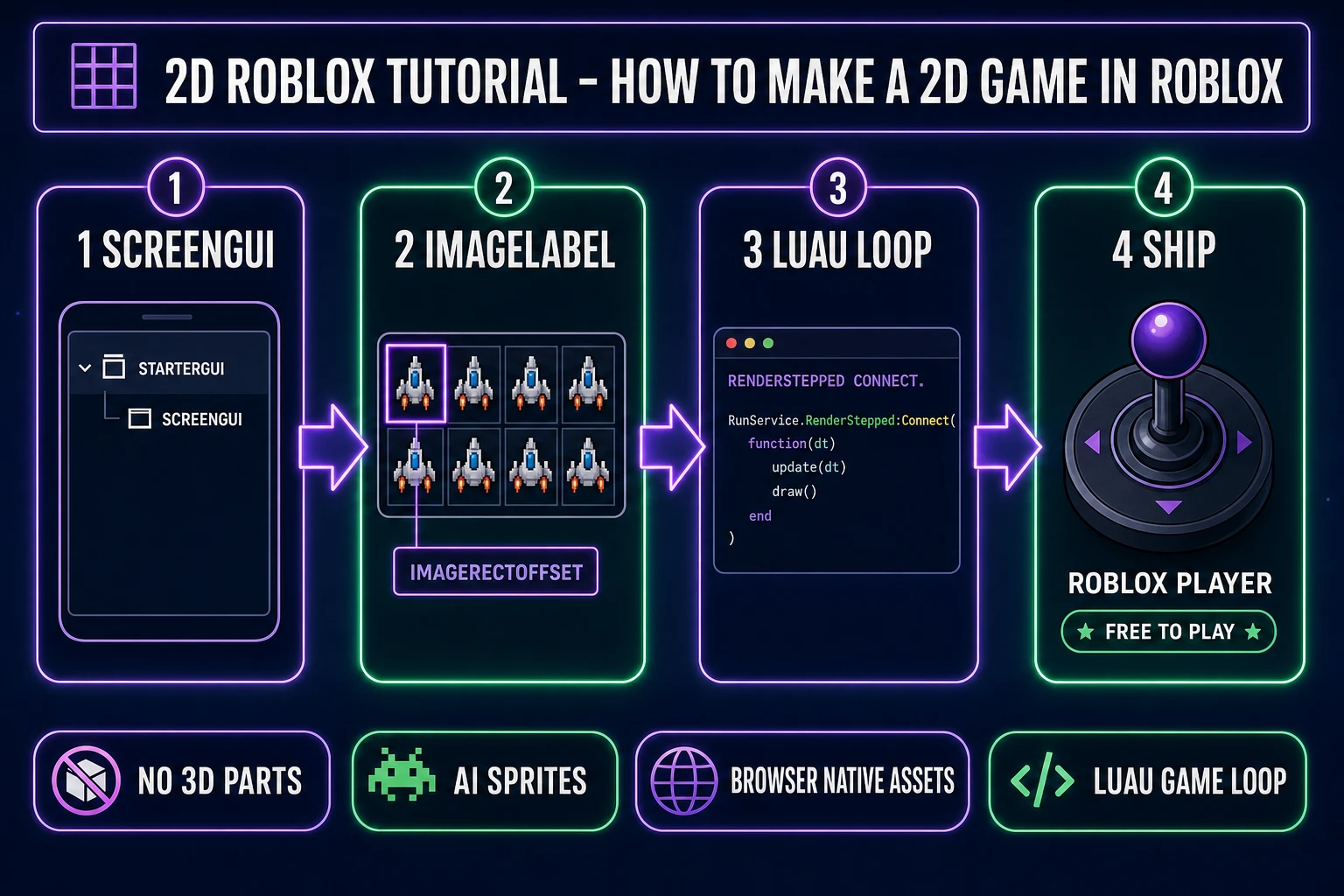
Once access is granted, use a separate test place and import an Aseprite .ase file. Roblox lists three entry points:
- Choose Import in the Asset Manager.
- Choose File > Import from the Studio menu.
- Use Add File in the Import queue.
The imported asset appears in the Asset Manager as an AnimatedImage. Roblox says the import retains the file's frames, named animation tracks (Aseprite tags) and frame timing, reducing the need to recreate track names and durations manually.
How to add an AnimationPlayer

Roblox documents two ways to add an AnimationPlayer after importing an AnimatedImage.
From the Asset Manager
Double-click the AnimatedImage asset. Studio inserts an AnimationPlayer and assigns the selected asset. Depending on the current Explorer selection, Studio may create a ScreenGui and ImageLabel, add the player under an existing ImageLabel, or place an ImageLabel and player under the selected object.
From a LocalScript
The official announcement provides this minimal example for a ScreenGui. It creates an ImageLabel, adds an AnimationPlayer, assigns animation content and starts playback automatically:
local imageLabel = Instance.new("ImageLabel")
imageLabel.Parent = script.Parent -- a ScreenGui
imageLabel.Size = UDim2.fromScale(1, 1)
imageLabel.ResampleMode = Enum.ResamplerMode.Pixelated

local player = Instance.new("AnimationPlayer")
player.AnimationContent = Content.fromUri("rbxassetid://109297876718750")
player.Loop = true
player.AutoPlay = true
player.Parent = imageLabel
The asset ID is the sample shown in Roblox's announcement. Replace it with the content URI for the AnimatedImage you imported and are authorized to use.
AnimationPlayer properties and methods
| Property | Purpose |
|---|---|
| AnimationContent | The AnimatedImage asset being played. |
| Track | The active animation track name. |
| CurrentFrame | Index of the frame currently displayed. |
| Enabled | Whether the player is active. |
| Speed | Playback multiplier; 0.5 is half speed and 2 is double speed. |
| Loop | Whether the selected track repeats. |
| AutoPlay | Whether playback starts automatically. |
| TimePosition | Current playback position in seconds. |
| IsPlaying | Read-only playback status. |
The player also exposes Play(), Pause() and Stop(), plus Ended and Stopped events. Scripts can use these controls to respond when a track finishes or switch to another animation.
Creating custom tracks with AnimatedImageService
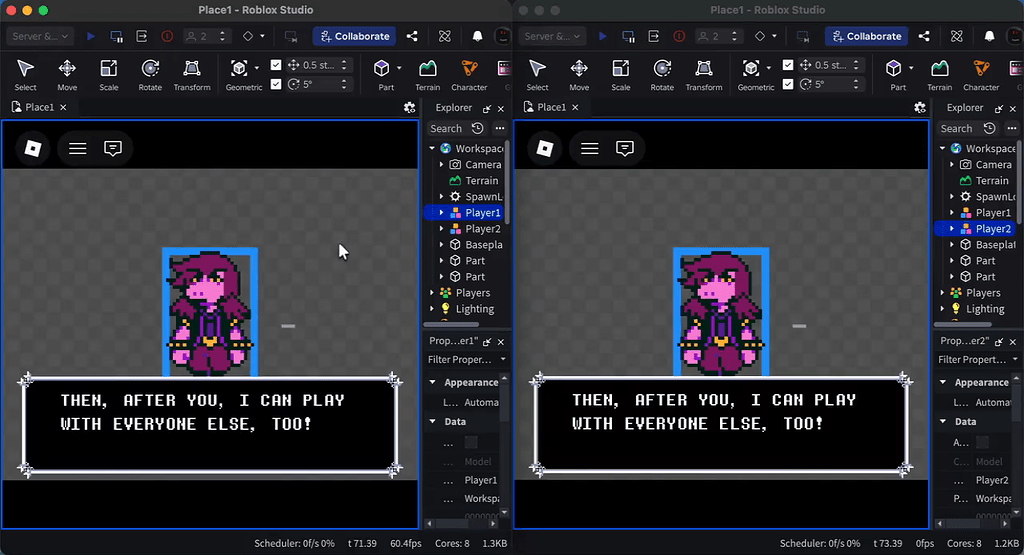
AnimatedImageService can inspect tracks and frames stored in an AnimatedImage, then add a new track or replace an existing one. Roblox lists these methods:
-
GetAnimatedImageClipsAsync(content)returns track names. -
GetAnimatedImageClipFramesAsync(content, trackName)returns frame names and durations for a track. -
AddAnimatedImageClipAsync(content, trackName, frames)adds or overrides a track. -
GetAnimatedImageClipsChangedSignal(content)signals when tracks are loaded or reloaded.
For example, a developer can read the frames from a Run track, change their durations and save a new Limp track. Roblox's announcement includes an example of this pattern. Custom tracks are built from frames already present in the AnimatedImage; this is not an automatic character-animation generator.
Important limitations creators should know
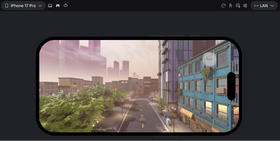
- No public publishing yet: AnimatedImage and AnimationPlayer are Studio-only during Early Access. You can test in Play mode and Device Emulation, but cannot publish places using these features to regular players.
- Use separate test places: places saved with AnimationPlayer during Early Access are not guaranteed to be forward-compatible with Studio Beta. Do not modify or save live games while enrolled.
- Team Create is unsupported: Roblox warns collaboration may behave unexpectedly and can block collaborators who are not in the same program.
- Performance is still being improved: large or numerous AnimatedImages may not perform well; Roblox says memory and streaming optimizations are in progress.
- No cross-client playback sync: calling Play() or Stop() on one client does not synchronize another client's animation frame-for-frame.
- Track names are exact: spaces in Aseprite tag names are preserved, so include those spaces when referencing the track.
- API naming may change: Roblox says it is still standardizing terms such as track and clip.
The publishing restriction is especially important: creators should treat this as a controlled development preview, not a feature they can add to a live experience today.
What this means for Roblox players
There is no confirmed public player toggle or catalog reward associated with this announcement. The immediate audience is developers accepted into Early Access. If the tools reach a wider release, players may eventually see more polished side-scrollers, top-down adventures, animated menus and sprite-based experiences. That is a possibility based on the genres Roblox named, not a promise of a release date or a specific game launch.
Roblox's broader 2D direction also connects with its Orthographic Camera Studio Beta. Creators exploring AI-assisted world building can also read our Roblox Scene Generation Beta guide and Prompt-to-Avatar Beta explainer.
Frequently asked questions
Is Roblox AnimatedImages available to everyone?
No. It is a limited Early Access Program. Creators must apply and wait for Roblox to admit them in waves.
Can I publish a Roblox game using AnimatedImage right now?
No. Roblox says AnimatedImage and AnimationPlayer are Studio-only during Early Access, and places using them cannot yet be published for regular players.
Can I import GIF files?
The launch announcement documents one-click Aseprite .ase imports. A Roblox staff reply in the same discussion says image-sequence imports are planned. That is a future plan, not a confirmed GIF-import feature.
Does Aseprite import preserve animation timing?
Yes. Roblox says the .ase import retains animation tracks and frame timing stored in the file.
Can I use AnimatedImage in a 3D Roblox game?
The announcement describes AnimationPlayer as a GuiObject-driven animation on an ImageLabel. A Roblox staff reply says it can be placed on UI surfaces, including surfaces on parts. Test the setup in a separate place while the program remains experimental.
Will two players see perfectly synchronized sprite animation?
Not automatically. Roblox lists cross-client playback synchronization as a known limitation during Early Access.
What should I do before testing it?
Apply through the official announcement, wait for access, update Studio and use a separate standalone test place. Do not open and save your live game while using the Early Access channel.
Official sources and image credits
- Roblox Developer Forum: Build 2D Games With AnimatedImages — feature details, API behavior, limitations and staff clarifications.
- Roblox Weekly Recap: October 26–30, 2026 — Roblox's summary of new 2D creation tools.
- Roblox Newsroom: RDC 2026 — The World Needs More Play — broader 2D creation direction and official presentation visual.
- Roblox Creator Documentation: Early Access Programs — program access and project-safety guidance.
- Additional illustrative image credits: Sorceress Games 2D Roblox tutorial and Roblox Developer Forum community sprite-sheet and Studio screenshots. Captions identify these as illustrative examples, not official AnimatedImages UI captures.
By Shivam Das