Roblox is giving creators a more direct way to frame 2D, isometric and top-down experiences. Its new Orthographic Camera beta adds a projection option to the existing Camera object in Roblox Studio. Unlike perspective projection, orthographic projection keeps objects the same apparent size even when they sit at different distances from the camera.
Quick answer: Enable Orthographic Camera in File > Beta Features, restart Studio if prompted, select Workspace > Camera, set ProjectionType to Orthographic, then adjust OrthographicSize. Important limitation: Roblox says the beta is Studio-only. Published experiences cannot use orthographic cameras yet.

What the Orthographic Camera beta changes
A perspective camera makes distant objects look smaller. Orthographic projection removes that perspective scaling: parallel lines remain parallel, and an object does not shrink simply because it is farther away. This can make a fixed-angle scene easier to compose and keep consistent.
Roblox announced the Studio beta on October 30, 2026, as part of a broader effort to make 2D creation a first-class format. The company highlighted side-scrollers, isometric builds, top-down strategy games, puzzle games and minimaps as possible uses. This is a camera foundation, not a complete 2D game-making system: creators still need to build movement, collision, animation, UI and level design around it. Read Roblox's official beta announcement.
How to enable Orthographic Camera in Roblox Studio
- Open Roblox Studio and choose File.
- Open Beta Features and enable Orthographic Camera.
- Restart Studio if prompted.
- In Explorer, select the Camera under Workspace.
- In Properties, change
ProjectionTypefromPerspectivetoOrthographic. - Adjust
OrthographicSizeto frame the amount of the world you want visible.
Perspective remains the default, so existing projects do not switch automatically. You can test the new projection in Studio without replacing the Camera object or rewriting an entire camera system just to try the mode.

The camera properties creators should understand
ProjectionType: choose the projection
ProjectionType selects between Perspective and Orthographic. Perspective remains the default. In orthographic mode, the camera uses orthographic settings rather than the usual field-of-view behavior. Roblox's API reference explains that perspective makes distant objects appear smaller, while orthographic keeps objects the same size at any distance. See the ProjectionType reference.
OrthographicSize: control the visible area
OrthographicSize controls how much of the world is visible. Roblox lists a default value of 35 and a supported range from 0.001 to 100,000 in the beta announcement. Smaller values zoom in; larger values zoom out. Moving the camera closer or farther away does not change apparent object size as it does in perspective mode, so use this property to adjust framing.
OrthographicMode: choose the screen dimension
OrthographicMode determines which screen dimension the size value measures. Roblox lists four options:
- Vertical: fixes the visible height and is the default.
- Horizontal: fixes the visible width, which can suit side-scrollers where the distance ahead matters.
- Diagonal: uses the screen diagonal as the size reference.
- MaxAxis: uses the longer screen dimension as the size reference, helping control how much of a map appears on different screen shapes.
The right choice depends on the game. A side-scroller may care most about the distance visible ahead; a tactics game may care more about limiting how much of the map a player can see. See Roblox's OrthographicMode reference.

ViewStretch: add controlled distortion
ViewStretch stretches the view along the axis not already fixed by the field-of-view or orthographic mode. Roblox lists a range of 0.5 to 2.0, with 1 as the default. It works with both perspective and orthographic cameras, so it is not an orthographic-only control.
Why this matters for 2D, isometric and top-down games
Creators have used narrow field-of-view settings and distant camera positions to approximate an orthographic look. Roblox says that workaround can introduce z-fighting, precision problems or content-culling issues. The native projection is more direct, and screen-to-world conversion through Camera:ScreenPointToRay() and Mouse.Hit adjusts automatically.
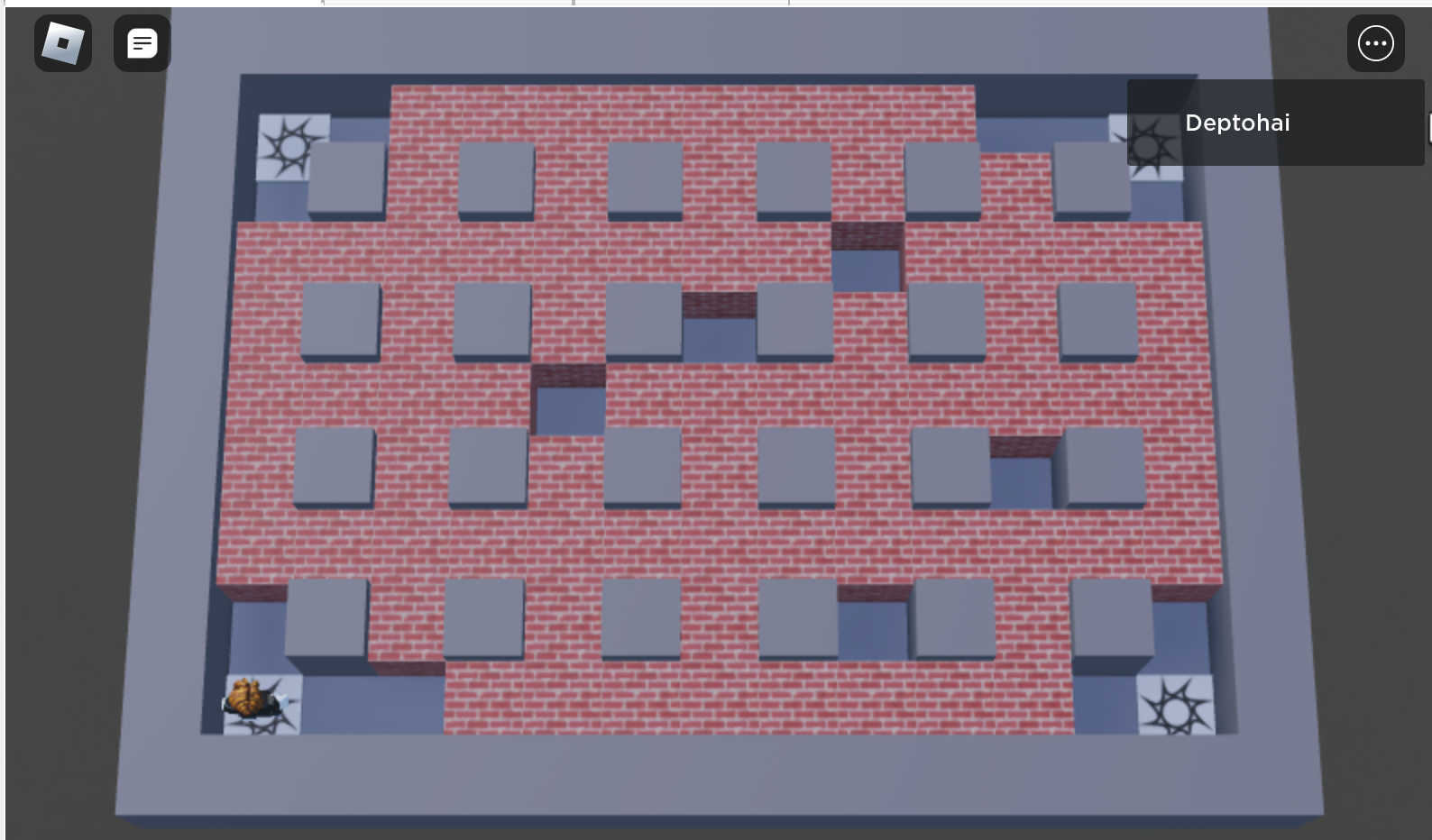
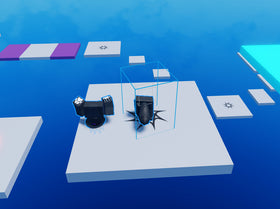
For side-scrollers, a stable view can make platform spacing and character scale easier to read. For isometric worlds, it can help preserve a composed look. For top-down strategy games and puzzle experiences, it can make the visible play area more predictable. These are development advantages, not a promise that a project automatically becomes a polished 2D game.
Known limitations: what is not ready yet
The beta is not production-ready for every project. Roblox lists several issues creators should test before building a release plan around it:
- Published experiences: orthographic cameras are Studio-only during the beta; published games cannot use them yet.
- Sun shadows: shadows are not yet correct with orthographic cameras.
- Near clipping plane: geometry close to or behind the near plane can be cut away. Roblox recommends moving the camera farther back; orthographic projection does not change apparent object size just because the camera moves.
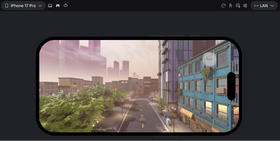
- ViewportFrames: cameras inside ViewportFrames still render in perspective, so orthographic minimaps inside those frames are not supported yet.
- Reflections: specular highlights and reflections may look wrong because they are calculated as if the view were perspective.
- VR: orthographic cameras are not supported in VR.
-
Zoom to fit: focusing a selection currently moves the Studio camera instead of adjusting
OrthographicSize, so the selection may not be framed as expected.

A practical test plan before changing a project
- Make a separate test place or duplicate the project. Do not experiment on the only copy of a live experience.
- Compare Perspective and Orthographic using the same scene and camera position.
- Try Vertical, Horizontal, Diagonal and MaxAxis on desktop, tablet and phone-shaped viewports.
- Test clicking, dragging and object placement with
ScreenPointToRay()andMouse.Hit. - Inspect shadows, reflections and near-plane clipping before choosing the look for a level.
- Keep the published experience on its current camera behavior until Roblox announces published-game support.
What this means for Roblox creators
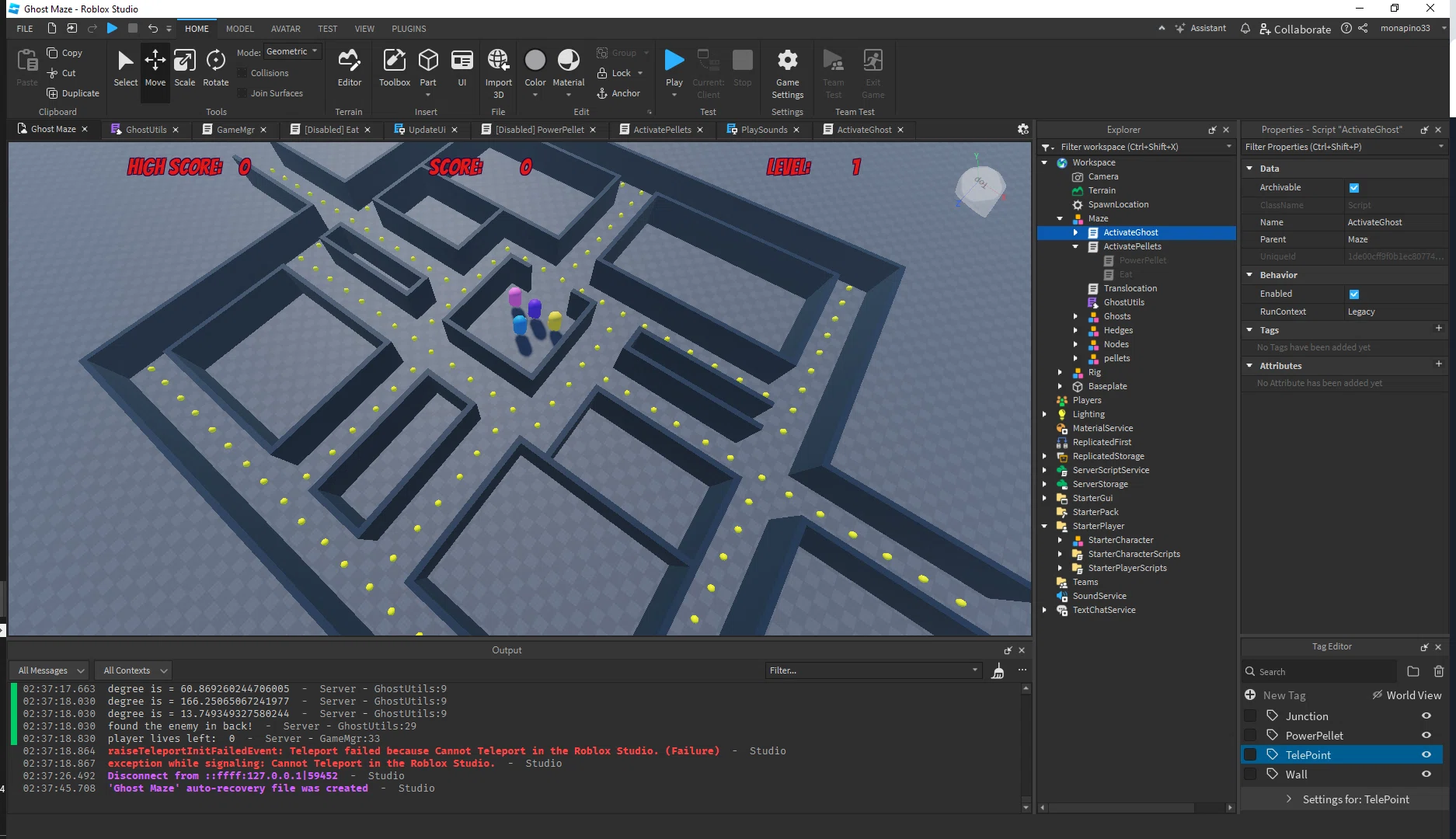
The biggest change is not that Roblox has shipped a complete 2D game framework. It has not. The meaningful step is that Studio now exposes a native orthographic projection option for creators who want to prototype controlled 2D, isometric and top-down views without relying on the old narrow-FOV trick.
Roblox's broader RDC 2026 update also described orthographic cameras as part of its effort to make 2D games easier to build. The Studio-only restriction remains the practical boundary today: creators can experiment now, but should not advertise published experiences as using the new camera until Roblox confirms that support. Read Roblox's RDC 2026 announcement.
Frequently asked questions
What is the Roblox Orthographic Camera beta?
It is a new Roblox Studio camera projection that keeps objects the same apparent size regardless of distance. It is intended to help creators build 2D, isometric, top-down and puzzle-style experiences.
How do I enable Orthographic Camera?
Open File > Beta Features in Roblox Studio, enable Orthographic Camera, restart if prompted, select Workspace's Camera, set ProjectionType to Orthographic, and adjust OrthographicSize.
Can published Roblox games use Orthographic Camera now?
No. Roblox says the beta is Studio-only. Published experiences cannot use orthographic cameras yet.
Does Orthographic Camera change existing games?
No. Perspective remains the default. Existing projects do not switch unless a creator opts into Orthographic in Studio.
What does OrthographicSize do?
It controls the visible extent of the world. Smaller values zoom in and larger values zoom out.
Which OrthographicMode should I use?
Vertical is the default starting point. Horizontal can suit side-scrollers, while Diagonal and MaxAxis offer other ways to control the visible area across screen shapes.
Does the beta support ViewportFrame minimaps or VR?
Not yet. Roblox lists ViewportFrame cameras and VR as unsupported for orthographic projection during the current beta.
Is Orthographic Camera better than setting FieldOfView to one degree?
For a project that needs orthographic framing, the native projection is more direct. Roblox says the tiny-field-of-view workaround can create z-fighting, precision problems and content-culling issues.
Sources
- Roblox Developer Forum: Orthographic Camera Studio Beta announcement
- Roblox Creator Hub: Camera API reference
- Roblox Creator Hub: ProjectionType
- Roblox Creator Hub: OrthographicMode
- Roblox: RDC 2026 – The World Needs More Play
By Shivam Das