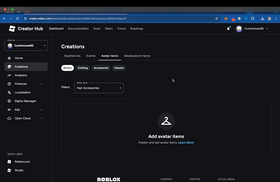
Quick answer: Roblox Web Play is now in early access for creators who want to test their own experiences in a browser. Open Creator Hub in Google Chrome, select an eligible experience, and click Play in Browser. The beta supports Chrome on Windows, macOS, and Android. It is not a public browser launch for every Roblox player, and it does not replace Roblox Studio for building or editing a game.
Roblox opened the creator beta on October 29, 2026. The goal is to help developers catch browser-specific bugs and tune performance before Web Play reaches a wider audience. That makes this update more than a new way to launch a game: it gives creators an early chance to see how their experiences behave outside the native Roblox app.
What Roblox Web Play testing actually does
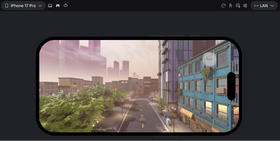
Web Play runs a Roblox experience through a browser instead of launching the regular desktop or mobile client. In this first creator-focused phase, the browser player is a testing environment for games that the signed-in creator owns or has permission to test.
The distinction is important: Web Play does not mean every public Roblox game is now playable in Chrome by everyone. Roblox says the current early-access program is for creators only. The company is using this stage to identify browser bugs, measure performance differences, and improve reliability before a broader rollout.
It also does not remove the need for Studio. Creators still use Roblox Studio to build, script, configure, and publish their experiences. Web Play adds another place to test the result: the browser environment that future players may use.
Who is allowed to test a game?
Roblox's announcement explains access by ownership and permissions:
- Individually owned experience: only the owner can test it through the current beta.
- Group-owned experience: the group owner can test it.
- Group editor: people with edit permissions can test the group experience.
- Early tester or play tester: approved testers can access a group-owned experience when they have been granted the relevant permission.
- Regular player: cannot use this creator beta to launch any unrelated public experience they choose.
If the Play in Browser option is missing, first check that you are signed in to the correct Roblox account and that you have the required ownership or group permission. Do not assume that a missing button means your game is broken; the beta is access-controlled.

How to open your experience in a browser
Roblox's beta announcement gives creators a short launch path. Use the following steps:
- Update Google Chrome. Roblox specifically warns that Chrome versions below 156 can crash on some x86 systems after around five minutes of play.
- Use a supported device. The announced creator beta targets Chrome on Windows, macOS, and Android.
- Sign in to Creator Hub. Use the Roblox account that owns the experience or has the required group permissions.
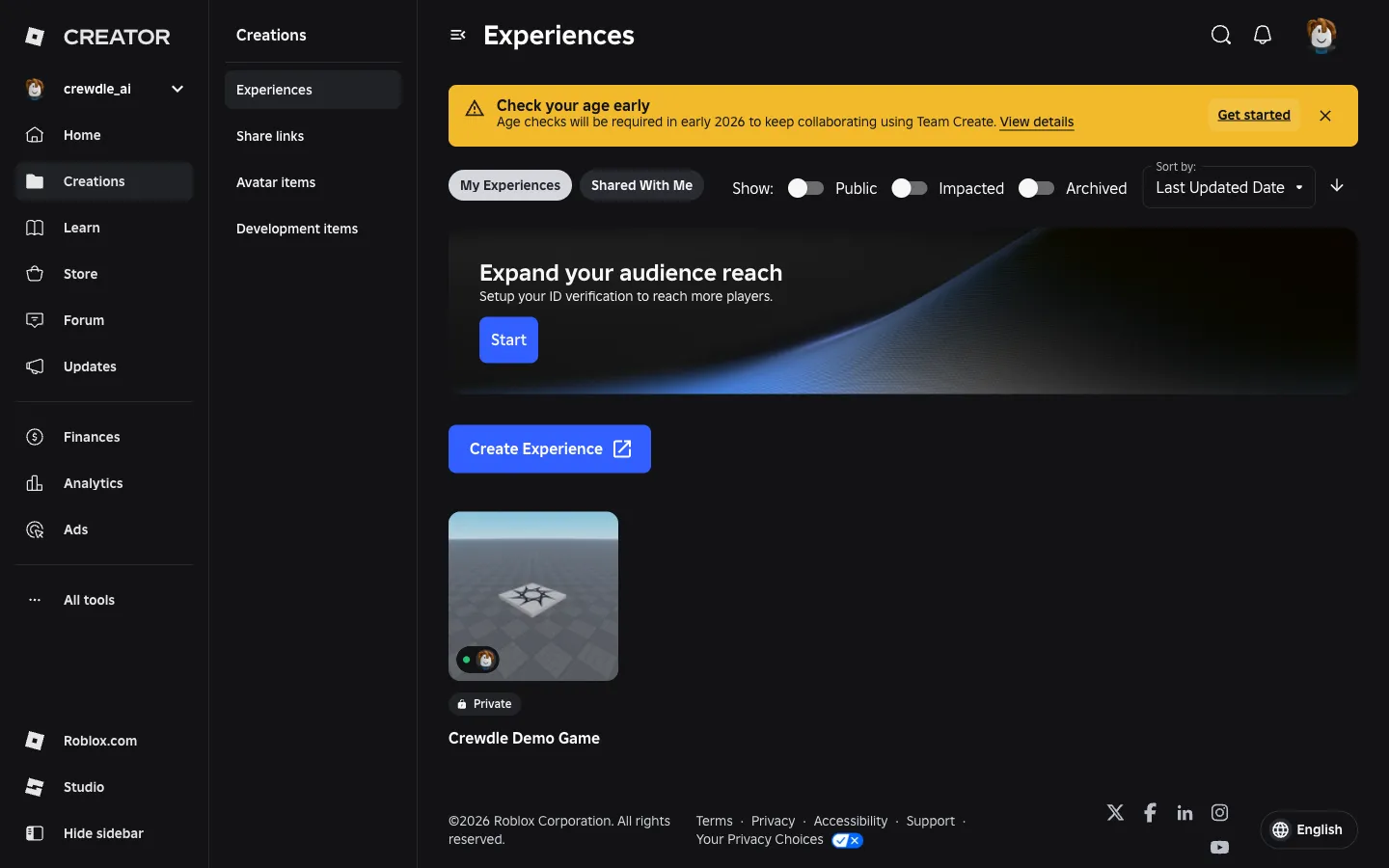
- Open the experience. Go to the game in Creator Hub's Creations area.
- Select Play in Browser. This starts the browser-based test session when your account and experience are eligible.
- Play through important game flows. Check loading, movement, camera behavior, interface layout, multiplayer interactions, teleports, and any browser-sensitive features.
- Record and report bugs. Include the experience link, device details, Chrome version, screenshots, and clear reproduction steps in your report.
Roblox has created a dedicated Web Play bug-report category on the Developer Forum. If a problem appears only in the browser, report it there rather than assuming it will also affect the native client.

Which browsers and operating systems are supported?
For this early-access phase, Roblox names Chrome on Windows, macOS, and Android. The company says other browser and operating-system combinations are blocked by default while it verifies compatibility. It has not announced a firm release date for Safari, Firefox, or other browsers.
Chrome on iPhone and iPad should not be treated as supported just because the browser is named Chrome. Roblox explains that browsers on iOS generally use Apple's WebKit engine, and it has not fully verified Web Play for iOS Safari. Use the exact supported combinations Roblox has announced rather than relying on browser branding alone.
What should developers test first?
A browser session can expose issues that are easy to miss during a Studio-only test. Start with a repeatable checklist:
- First-load behavior: measure how long the initial browser session takes to start and whether players understand the loading state.
- Core gameplay: test the main loop, character movement, camera, physics, and interactions from beginning to end.
- Interface readability: inspect text, icons, menus, HUD elements, and touch controls at common browser window sizes.
- Lighting and materials: compare shadows, atmosphere, advanced lighting, shaders, and PBR materials with the native client.
- Multiplayer and teleports: test server joins, cross-experience teleports, and any permission-dependent destinations.
- Account and purchase flows: check two-step verification prompts and confirm that any Robux package display behaves as expected.
- Performance: test on more than one device, especially systems with integrated and dedicated graphics.
Roblox says the browser has memory and performance overhead. Its beta currently uses WebGL, and high-quality shaders or advanced lighting may not render as expected. The company plans to move to WebGPU before full release. Roblox also says it will automatically scale presentation quality to adapt, but the native client is expected to remain the best option for the fastest, highest-quality gameplay.

Known Web Play beta issues
Roblox's October 29 announcement lists several issues creators should keep in mind:
- Some webviews may not open correctly.
- The first load can be slow because the browser downloads the app resources.
- Cross-universe teleporting can fail when a tester does not own the destination game or lacks playtester permissions.
- Two-step verification can trigger inconsistently.
- Android may display app Robux packages instead of web Robux packages.
- On Windows PCs with integrated and dedicated GPUs, Chrome may select the integrated GPU.
- Some games may show small visual pops if they do not use ImprovedPhysicsReplication.
- Roblox has intermittently seen error 256 and “Engine failed to load” errors that prevent a browser join.
These are beta observations, not proof that every creator will encounter every issue. When reporting a bug, include the exact device, operating system, Chrome version, game link, and steps that reproduce it. A short screen recording or screenshot can help Roblox understand whether the problem is visual, performance-related, or a failed join.

Features that are not available in the immediate beta
Roblox says several features available on other platforms are not supported in Web Play for the immediate future:
- Voice chat, party chat, and Friends chat.
- Avatar Dynamic Heads through Self View.
- In-experience video playback and video ads.
- Image and Moments capture.
- Haptic support.
- Switching avatars while inside an experience.
- Remote MicroProfiler captures.
Creators whose game loop depends on one of these features should design a browser-specific fallback where appropriate, or clearly communicate that the experience is still being tested. Do not assume that a feature working in the Roblox app will automatically work in Web Play.
Does the beta have minimum hardware requirements?
Roblox says it is not enforcing a minimum device specification for the creator beta. For a broader release, the company says its current testing points toward 6 GB of RAM, a four-core 64-bit CPU, and a Mali G170-class or better GPU with hardware-accelerated WebGL 2 and WebGPU support. Roblox notes that these targets may change as Web Play evolves, so creators should treat them as provisional guidance rather than final requirements.
How Web Play fits into a creator's testing workflow
The strongest workflow is to keep Studio testing and browser testing side by side. Studio remains the place to edit scripts, inspect objects, simulate network conditions, and debug the project. Web Play helps answer a different question: what happens when the same experience runs inside a browser with browser memory, graphics, input, and security constraints?
For a practical release checklist, test the core loop in Studio first, publish a testable build, launch that build through Creator Hub's Play in Browser option, and compare the same scenarios in the native client. Track each browser-only issue separately so you can prioritize fixes that affect actual player access.
Roblox also recommends that competitive experiences consider the Device Integrity API. That is especially relevant when a game makes security-sensitive decisions about ranked play or competitive sessions. See our related guide to the Roblox Device Trust API for more context.
If you are a player rather than a creator, our separate guide explains the current player-facing status: Roblox Web Play: How to Play Games in Chrome Without Downloading. That article covers the wider rollout; this one focuses on the creator testing workflow.
When will Web Play open to all players?
Roblox says it is aiming to start a progressive rollout before the end of 2026. It has not provided a precise public launch date or promised that every account, region, device, and browser will receive access simultaneously. Creators should plan around a staged expansion, not a single guaranteed launch day.
The September 2026 RDC announcement described the broader goal: players will eventually be able to open an experience's details page and join in Chrome without installing the Roblox app, with more browsers planned later. The October 29 creator beta is an early step toward that goal.
Frequently asked questions
Can I test a Roblox game in Chrome without opening Roblox Studio?
Eligible creators can launch their own or authorized group experiences from Creator Hub using Play in Browser. Studio is still needed for building and editing; Web Play adds a browser-based way to test the published experience.
Can every Roblox player use Web Play now?
No. The current beta is for creators and approved testers. Roblox plans to begin a progressive public rollout before the end of 2026, but it has not announced an exact date.
Does Web Play support Windows, Mac, and Android?
The creator beta supports Chrome on Windows, macOS, and Android. Other browser and operating-system combinations are not generally enabled in this phase.
Does Web Play support voice chat?
No. Roblox lists voice chat, party chat, and Friends chat among the features unavailable in the immediate beta.
Is Web Play faster than the Roblox app?
Roblox says browser overhead can affect performance and that the native client will remain the better option for the fastest, highest-quality gameplay. Creators should compare performance on real target devices.
Where do I report a Web Play bug?
Use Roblox's official Web Play bug-report category. Include your game link, device, operating system, Chrome version, screenshots, and steps to reproduce the issue.
Official sources
- Roblox Developer Forum: Creators Can Test Games on the Web (October 29, 2026)
- Roblox Newsroom: RDC 2026 – The World Needs More Play
- Roblox Creator Hub: Studio Testing Modes
- Roblox Developer Forum: Weekly Recap, October 26–30, 2026
By Shivam Das