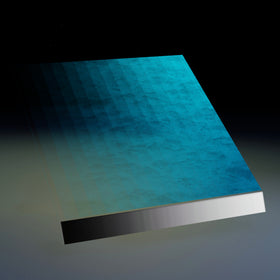
Quick answer: Roblox Studio’s Quality Mode for Texture Generation is a beta option that creates higher-detail 4K physically based rendering (PBR) textures. Roblox says it generates color, roughness, and metalness maps, helping creators give existing meshes more convincing material detail. The Fast option is designed for quicker iteration with a 1K color-only texture. Quality generation takes about two minutes, compared with roughly 30 seconds for Fast, according to Roblox’s announcement.

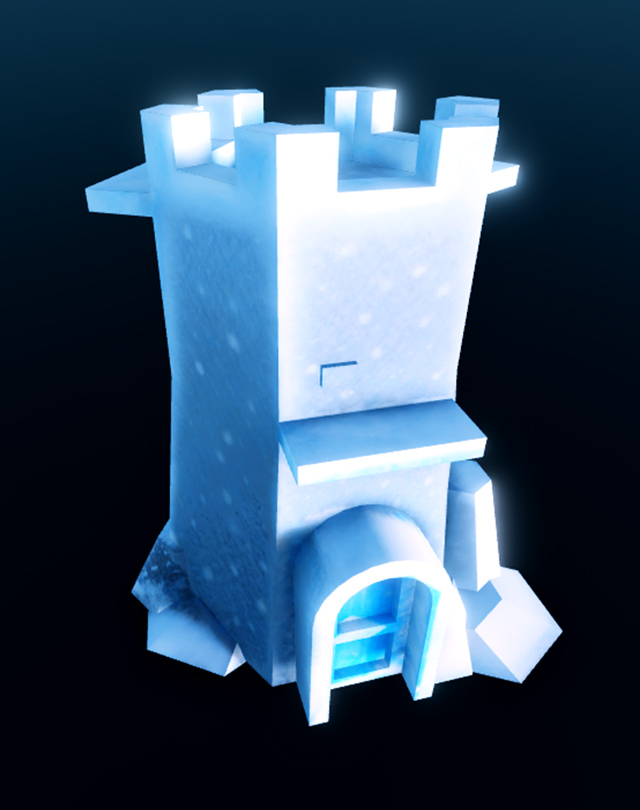
The important change is not simply that a texture can look sharper. Quality Mode gives creators more information about how a surface should respond to light. A painted metal panel, worn stone wall, or wooden prop can look flat when it relies on color alone. PBR maps let a compatible material communicate surface qualities such as roughness and metallic response, making the result more convincing as the camera moves and lighting changes.
Roblox introduced the Quality Mode beta on October 16, 2026, through its Creator Forum. It is a Studio-side creation tool, not a switch that automatically upgrades every Roblox experience. A creator still needs to select an eligible mesh, generate and review the texture, apply it to the asset, and publish an updated experience before players can see that change in a live game.
What Quality Mode changes in Roblox Texture Generation
Roblox’s announcement describes two generation choices:
| Mode | Output described by Roblox | Typical generation time | Best use |
|---|---|---|---|
| Fast | 1K color-only texture | About 30 seconds | Quick tests, prompt experiments, and early visual direction |
| Quality | 4K PBR texture with color, roughness, and metalness maps | About 2 minutes | Higher-detail materials and assets that need a more convincing finish |
Those times are approximate, not guaranteed completion limits. The actual wait can vary with the asset and service conditions. The practical trade-off is straightforward: Fast helps creators test ideas quickly, while Quality spends longer producing a more detailed material set.

Why 4K PBR textures can make a visible difference
A diffuse or color texture mainly tells the renderer what colors and patterns belong on a surface. PBR workflows add material information. In the Quality Mode beta announced by Roblox, the additional roughness and metalness maps help describe whether a surface should appear matte, glossy, or metallic under the experience’s lighting.
- Color map: Supplies the visible base colors and painted details.
- Roughness map: Varies how broadly or sharply light reflects across different parts of a surface.
- Metalness map: Identifies metallic portions of the material so the renderer can treat them differently from non-metal surfaces.
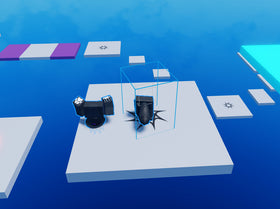
That extra information can be useful on objects with mixed materials: a metal chest with worn paint, a stone statue with damp patches, or a sci-fi prop combining coated panels and exposed metal. The benefit depends on the mesh, UV layout, lighting, and the quality of the generated result. A 4K label alone does not guarantee a better-looking asset.
How to try Quality Mode in Roblox Studio
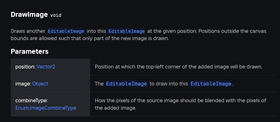
Roblox’s October 16 beta announcement lists three entry points for texture generation. The selected object needs to be a mesh that the tool can access, and the asset’s permissions must allow the operation.
- Open the experience in Roblox Studio and select the mesh or supported model you want to restyle.
- Open the Texture tool from the Model ribbon, or right-click the selected object and choose Generate → Texture.
- You can also open Assistant with the mesh selected and use the
/generate_texturecommand. - Describe the material with specific details about color, material type, pattern, wear, and which parts should receive each treatment.
- Preview the result and choose Quality when you want the 4K PBR output. Choose Fast when you are still exploring ideas.
- Review the generated texture on the actual mesh from several angles before keeping it. If the result is close but imperfect, refine the prompt and generate another version.
- Once you are satisfied, apply the texture, test the asset in the experience, and publish the updated experience when it is ready for players.
Prompting tips: get more consistent texture results
Creators will usually get more useful results by describing the material rather than asking for a vague visual upgrade. “Make it realistic” leaves too many decisions to the generator. A stronger prompt names the material, color, condition, pattern, and the parts of the object that should look different.
For example, instead of writing “make this backpack better,” try: “A deep navy-blue canvas backpack with visible woven fabric, slightly worn seams, dark brown leather trim, muted brass buckles, and a lightly scuffed bottom panel.” The more relevant material details the prompt contains, the easier it is to judge whether the output fits the asset.
Roblox’s guidance also warns creators not to ask a texture prompt to change the mesh geometry, add objects, or create effects that a surface texture cannot produce. A texture can change the appearance of a panel; it cannot add real thickness, new moving parts, or functional geometry. If the shape itself is wrong, edit the model rather than trying to solve it with a texture prompt.

When creators should choose Fast instead of Quality
Quality Mode is not automatically the best choice for every object. A small background prop may not need a 4K texture, especially if players rarely see it close up. A creator working through several color or style ideas may also waste time generating full-quality results before settling on a direction.
A more efficient workflow is to test prompts in Fast mode, compare the previews, refine the wording, and then run the preferred direction in Quality mode for assets where close-up detail matters. Reserve the higher-resolution output for hero props, signature items, prominent environment pieces, and objects that players inspect at short range.
Creators should also consider memory and performance budgets. A high-resolution texture set can add asset cost, and many detailed materials across a large map can accumulate. Roblox’s announcement does not say that Quality Mode automatically makes a game load faster or improves frame rate. The feature is about texture fidelity; performance still depends on how the experience is built, the number and size of assets, and the devices players use.
Known limitations and details creators should check
- It is a beta: The October announcement introduced Quality Mode as a beta feature, so availability and behavior can change.
- Generation takes longer: Roblox estimated about two minutes for Quality compared with about 30 seconds for Fast.
- Prompt quality matters: Include the intended materials, colors, patterns, and wear rather than relying on a short generic prompt.
- Texture is not geometry: The tool changes surface appearance; it does not add actual mesh detail or functional parts.
- Check permissions: Some imported or Toolbox assets may not permit the operation. If Studio returns an authorization error, verify the asset’s ownership and permissions.
- Inspect the final result: Fine details can reveal artifacts more clearly at 4K, so review the applied texture at the distance and lighting where players will see it.
Does Quality Mode automatically update textures in live Roblox games?
No. Quality Mode is a creation workflow in Roblox Studio. It generates a texture for a selected asset; it does not independently edit every copy of that asset in every published experience. The creator must apply the result to the relevant project content, test it, and publish an update before players can see the change in the live experience.
What this beta means for Roblox creators
The strongest use case for Quality Mode is not replacing every existing texture. It is giving creators a faster way to bring important meshes closer to the visual standard they want without leaving Studio for every material experiment. A small team can test an idea in Fast mode, refine the prompt, and use the higher-fidelity PBR output on the assets where it will be noticed.
There is still creative judgment involved. The generator does not know the art direction of an entire game unless the creator explains it, and it cannot fix poor geometry, confusing lighting, or an inconsistent environment style. The best results will come from creators who treat generated textures as editable production assets: prompt carefully, inspect the output, and keep the project’s visual and performance goals in view.
For the official feature details, read Roblox’s Quality Mode beta announcement and the Roblox Creator Hub Texture Generator documentation.
Frequently asked questions
What is Roblox Studio Quality Mode for Texture Generation?
Quality Mode is a beta option that generates a 4K PBR texture set with color, roughness, and metalness maps, according to Roblox’s October 2026 announcement.
How is Quality Mode different from Fast Mode?
Roblox describes Fast as a 1K color-only texture that takes about 30 seconds, while Quality generates 4K PBR textures and takes about two minutes.
Does Quality Mode make Roblox games run faster?
Roblox has not described Quality Mode as a performance-boost feature. It improves texture detail and material information; creators still need to manage asset size and overall experience performance.
Can players see Quality Mode textures immediately?
No. A creator must generate and apply the texture in Studio, test the experience, and publish an update before the change appears in the live game.
Can Quality Mode add details to the shape of a mesh?
No. Texture generation changes surface appearance. It does not add geometry, new parts, or functional effects to the model.
How long does Roblox Quality Mode take?
Roblox’s beta announcement gives an approximate generation time of two minutes for Quality Mode and about 30 seconds for Fast Mode. Actual times can vary.
What should creators include in a texture prompt?
Describe the material, colors, patterns, condition, and the parts of the asset that need specific treatments. Detailed prompts generally give creators more control than vague requests.
Reporting note: This article reflects Roblox’s October 16, 2026 beta announcement and Creator Hub documentation available for the feature. Beta tools can change, so check the official announcement and Studio interface for the latest availability.
By Shivam Das