Roblox Studio’s Next-Gen Draggers refresh the core Move, Rotate, and Scale tools with clearer handles and more flexible ways to transform objects in a 3D workspace. The beta adds multi-axis planar movement, camera-relative movement and rotation, a trackball option, and cleaner visual controls. It is a creator workflow improvement—not a new in-game feature that automatically changes every Roblox experience.
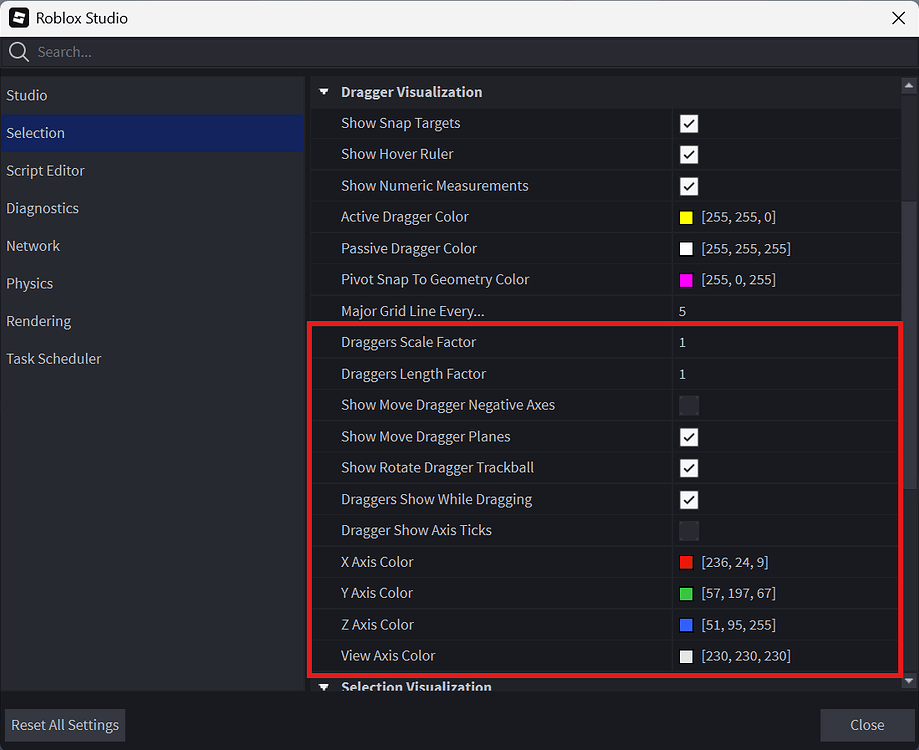
Quick answer: To try Next-Gen Draggers, open Roblox Studio, go to File > Beta Features, enable Next-Gen Draggers, save, and restart Studio. You can then adjust the available controls under Studio Settings > Selection > Dragger Visualization.
What are Next-Gen Draggers?
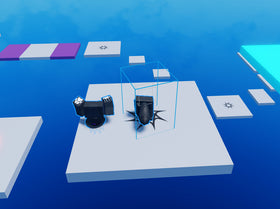
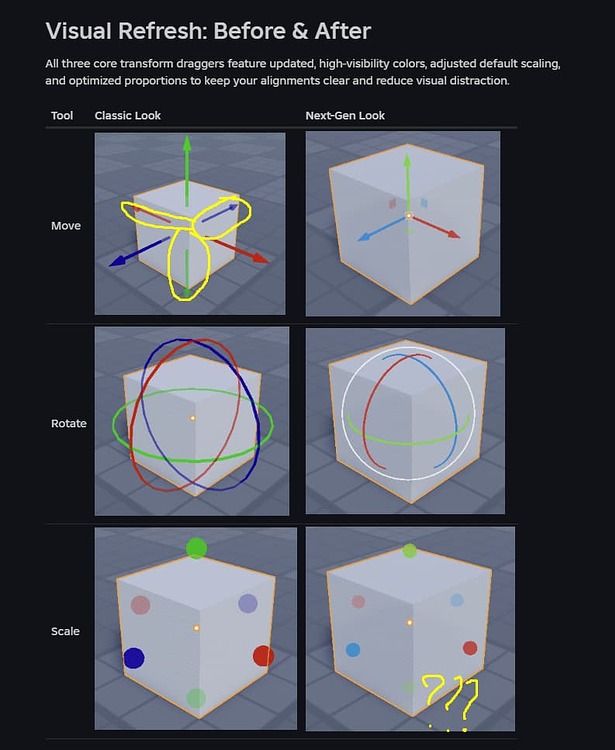
Draggers are the on-screen handles creators use to reposition, rotate, and resize selected parts or models. Roblox’s refreshed design aims to make those controls easier to read and operate in crowded scenes. The official announcement describes updated proportions, high-visibility colors, multi-axis planar dragging, view-space transformations, and trackball rotation.
The distinction matters: these are Roblox Studio editing tools for creators. They do not change how players move their avatars, and they do not automatically add new mechanics to a published game.
Move tool: move across two axes at once
The updated Move tool adds planar handles so a creator can move an object across two axes in one drag instead of repeating separate axis movements. It also includes a view-space option: the central white planar handle moves an object relative to the current camera view rather than strictly following a world or local axis.
The beta uses positive-axis handles by default to reduce viewport clutter. When snapping is active, visual tick marks can help show increments along the active axes. Creators can adjust the visibility of negative axes and planar handles in the dragger settings.
Rotate tool: trackball and camera-relative rotation
The Rotate tool’s updated rings show only the front-facing portions, which can make orientation easier to understand when the selected object is surrounded by other geometry. Trackball mode lets creators click and drag inside the rings to rotate freely across all three axes. The outer white ring supports rotation relative to the current camera view.
This can be useful when positioning props, machinery, decorative assets, or irregular models where a simple one-axis turn is not enough. For precise work, creators should still use snapping and inspect the result from multiple camera angles.
Scale tool: clearer handles and proportion control
The Scale tool receives the refreshed visual treatment and more compact handles. Roblox’s announcement also discussed work toward easier uniform scaling across all three dimensions. Treat that uniform-scaling detail as a planned improvement in the announcement, not as a guarantee that every version of the beta has the same behavior.
How to enable Next-Gen Draggers in Roblox Studio
- Open Roblox Studio and choose File.
- Select Beta Features.
- Find and enable Next-Gen Draggers.
- Save the setting and restart Studio if prompted.
- Select a part or model, then test the Move, Rotate, and Scale tools in the 3D viewport.
If the feature does not appear, confirm that Studio has restarted and check the Beta Features list again. Beta availability and interface details can change as Roblox iterates on the tools.
Customize the dragger appearance
Open File > Studio Settings > Selection > Dragger Visualization to review available controls. Depending on the current beta build, settings include dragger scale, negative-axis visibility, planar handles, rotate trackball visibility, and axis colors. If the new layout feels too busy, hide the handles you do not use; if you need a more traditional setup, restore negative axes and turn off planar or trackball options where those settings are available.
Why the update matters to Roblox creators
Small editing improvements can save time across repeated building tasks. Planar movement reduces repeated adjustments, camera-relative controls can make placement feel more intuitive, and the trackball can simplify complex rotations. Clearer handles may also help creators work in dense scenes without confusing one axis for another.
These tools are not a replacement for careful alignment. Use snapping for repeatable placement, verify dimensions in the Properties panel when accuracy matters, and playtest the experience after making major changes.
Does Next-Gen Draggers affect published games?
No. The feature changes the built-in editing controls in Roblox Studio. It does not directly modify a published experience or change a player’s controls. Your project changes only when you edit objects and publish those changes yourself.
Will Next-Gen Draggers break custom building plugins?
Roblox’s announcement says the beta applies to the default built-in Move, Rotate, and Scale tools; custom plugins and scripting workflows continue to function. Creators should still test important plugins after Studio updates, especially if a plugin relies on editor interactions.
Frequently asked questions
Is Next-Gen Draggers enabled by default?
No. The official instructions say to enable it from File > Beta Features in Roblox Studio.
Can I turn off planar movement handles?
Yes. The announcement identifies a setting for showing or hiding Move dragger planes under Studio Settings > Selection > Dragger Visualization.
What does trackball mode do?
It provides free-form rotation across all three axes by dragging inside the Rotate tool’s rings.
Can I return to a more classic dragger layout?
The announcement lists settings that can approximate the earlier appearance, including increasing the dragger scale factor, showing negative Move axes, hiding Move planes, and disabling the Rotate trackball. The exact controls may vary by beta build.
Official sources and further reading
- Roblox Developer Forum: Next-Gen Draggers announcement
- Roblox Creator Hub: Parts and transform tools
- Roblox Creator Hub: Studio interface
Reporting and guide by Shivam Das.