Updated November 4, 2026. Roblox has added a quicker way to capture individual plugin windows in Studio and introduced three Color3 methods that help creators build more readable interfaces. The updates solve different problems: one makes it easier to share a specific Studio window, while the other helps scripts choose and measure foreground colors against changing backgrounds.
Quick answer: Press Ctrl + Shift + 2 in Roblox Studio, choose the plugin window or other supported Studio window, and copy the capture to your clipboard. The shortcut can be changed, and the same Screenshot Plugin action is available through Studio quick actions. Separately, Color3:GetContrastingColor(), Color3:GetContrastRatio(), and Color3:GetLuminance() give creators built-in tools for checking UI color readability.
Plugin Screenshot Support is available in Roblox Studio
Roblox announced Plugin Screenshot Support on October 27, 2026. The feature lets creators capture an individual Studio window—such as a plugin window, Output panel, or viewport—instead of taking a screenshot of the entire Studio interface and cropping it afterward.
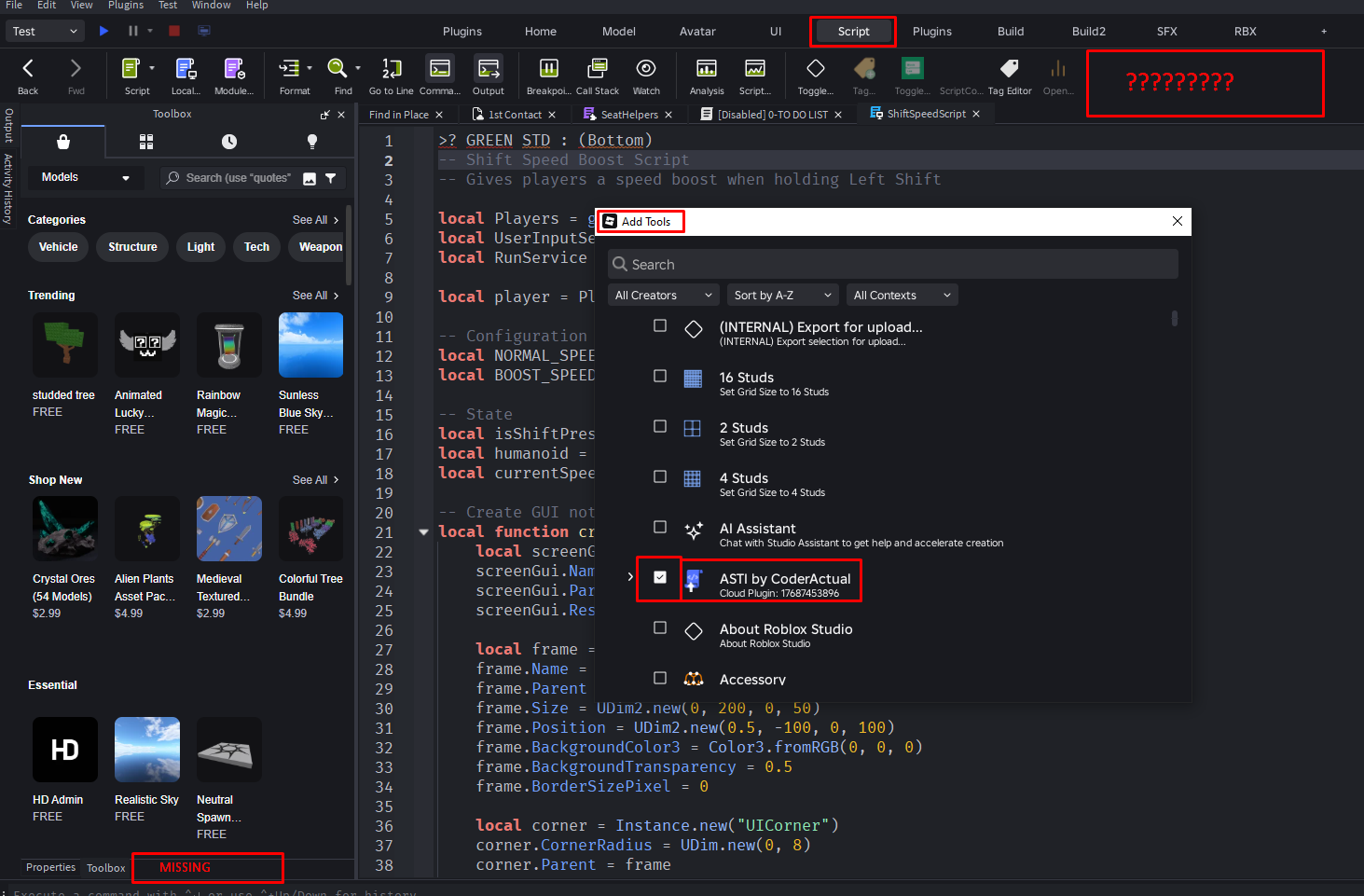
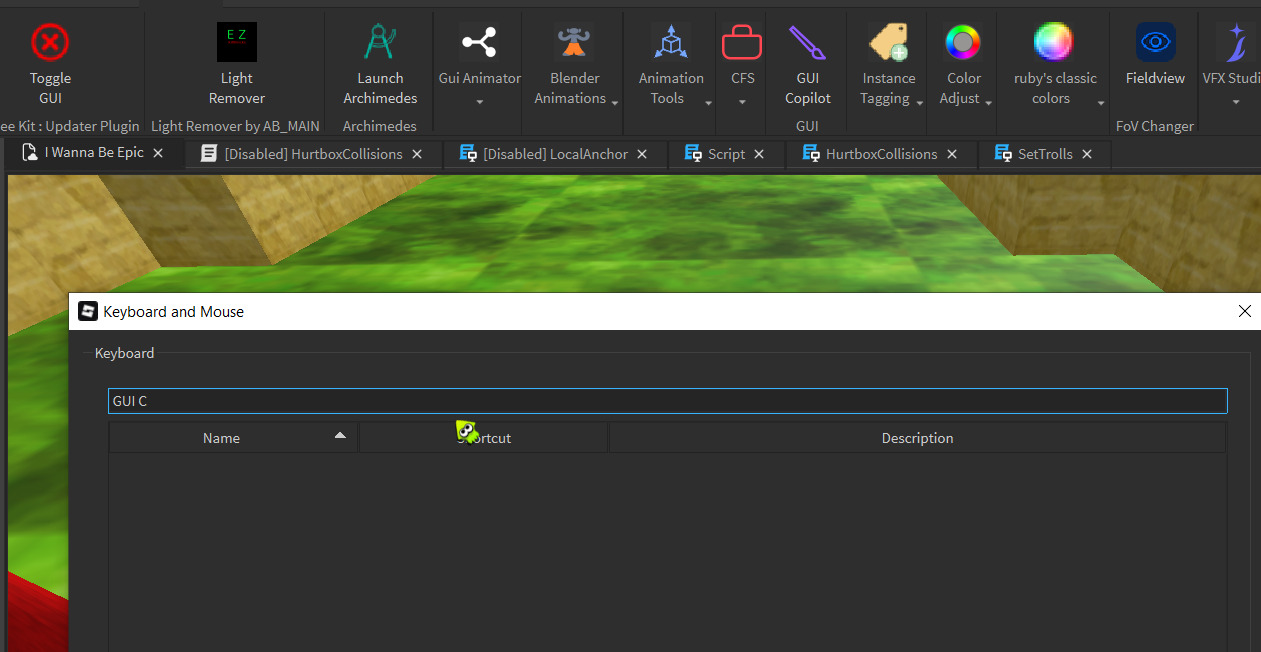
To use it, press Ctrl + Shift + 2, select the window you want to capture, and copy the resulting image from the capture flow. If the default shortcut conflicts with your setup, Roblox says the action can be rebound. You can also find Screenshot Plugin through Studio's quick actions.
How the new screenshot action helps creators
- Bug reports: Capture the plugin window that shows the issue, making it easier for a plugin developer to understand what you are seeing.
- Team communication: Share the Output window or a specific viewport without exposing unrelated panels.
- Plugin demonstrations: Show the interface and controls of a tool more clearly in a tutorial or support discussion.
- Focused documentation: Keep screenshots centered on the relevant Studio window rather than asking readers to inspect a full-desktop image.
The distinction is useful: this is a window-specific capture workflow, not a promise that every Studio dialog or every object can be captured. Roblox's announcement says dialog support is planned for a future update.
What is not available yet?
Roblox's October 27 announcement separates the current feature from work planned for later. Configurable output settings—so captures can save directly to a file instead of only being copied to the clipboard—were listed as future work. Roblox also said MCP support was a high priority and in progress, and that dialog support was planned. Those items should not be described as already released unless a newer official update confirms their availability.
For now, creators should use the current clipboard workflow and attach the copied image to their bug report, team message, or documentation. If you need a permanent file, paste the capture into an image editor and save it yourself.

Color3 gets three new tools for accessible UI
In a separate November 3 announcement, Roblox introduced three methods on the Color3 datatype. They help creators select a readable foreground color and measure contrast when interface backgrounds change dynamically—for example, team-colored chat bubbles, player tags, status labels, and custom themes.
GetContrastingColor(): choose the strongest candidate
Color3:GetContrastingColor(...) compares candidate colors against the background color and returns the candidate with the highest contrast. With no arguments, it compares black and white. Creators can pass custom candidates to match their own design system.
GetContrastRatio(): measure the difference
Color3:GetContrastRatio(otherColor) returns a contrast ratio from 1 to 21. A value of 1 means the colors have no contrast; 21 is the maximum contrast, such as pure black against pure white.
GetLuminance(): inspect relative brightness
Color3:GetLuminance() returns relative luminance from 0 to 1 using the WCAG 2.1 definition. Roblox says color channels are clamped to the 0–1 range before the calculation.

Example: make team-colored chat bubbles easier to read
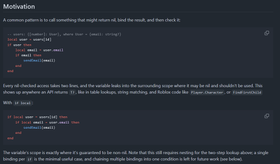
Roblox's announcement demonstrates how creators can use the new method to select a contrasting text color for a player's team-colored chat bubble. The key idea is to choose the foreground after the background is known, rather than assuming that one fixed text color will remain readable for every team.
local teamColor = team.TeamColor.Color
local props = Instance.new("BubbleChatMessageProperties")
props.BackgroundColor3 = teamColor
props.TextColor3 = teamColor:GetContrastingColor()
return props
This is a starting point, not a complete accessibility audit. Roblox notes that choosing the best of the available candidates does not guarantee a 4.5:1 ratio on every mid-tone background. Use GetContrastRatio() to inspect the actual result and adjust the palette where needed.

What the two updates mean for Roblox creators
The screenshot action improves the way creators communicate about Studio tools. A precise capture can make a support request easier to reproduce and can reduce the back-and-forth involved in diagnosing a plugin issue. The Color3 methods address a different part of development: they give creators native functions for choosing and testing readable colors in interfaces that change while a game is running.
Together, the updates support a more practical workflow: build a plugin or interface, check its behavior, capture the relevant Studio window when something needs review, and use contrast measurements to test the UI's readability. Neither feature replaces careful testing with real users, and neither guarantees that every plugin or game interface is automatically accessible.
Frequently asked questions
How do I take a screenshot of a plugin window in Roblox Studio?
Press Ctrl + Shift + 2, select the window, and copy the capture to your clipboard. You can also run Screenshot Plugin from Studio's quick actions.
Can I change the screenshot shortcut?
Yes. Roblox says the Screenshot Plugin action's keyboard shortcut can be rebound.
Can Studio save the screenshot directly as a file?
Direct file-saving options were listed as future work in the October 27 announcement. The announced workflow copies the capture to the clipboard.
Can the new screenshot action capture dialogs?
Dialog support was listed as a planned future update. Do not assume it is available in the current workflow.
Do the new Color3 methods guarantee WCAG AA compliance?
No. GetContrastingColor() returns the most contrasting candidate from the choices provided, but some backgrounds may still fall short of the 4.5:1 target for normal text. Measure the result with GetContrastRatio() and adjust the design when needed.
Are Plugin Screenshot Support and Color3 contrast tools the same update?
No. Plugin Screenshot Support was announced on October 27, 2026. The three Color3 contrast and luminance methods were announced separately on November 3, 2026.
Official sources and further reading
- Roblox Developer Forum: Plugin Screenshot Support in Studio
- Roblox Developer Forum: Build Accessible UI Faster — New Color3 Contrast & Luminance Methods
- Roblox Creator Hub: Color3 reference
- Roblox Creator Hub: Studio plugins
- W3C: Understanding contrast minimum
By Shivam Das · Roblox Studio and creator-tools coverage · Updated November 4, 2026. Community plugin images are credited to their original Roblox Developer Forum posts and are illustrative examples, not screenshots of the new capture feature.