Quick answer: Roblox has moved Custom Terrain Materials out of Early Access. Creators can now use up to 62 editable terrain material slots in published experiences, provided they enable Expanded Terrain for the individual place. There is one major catch: Roblox temporarily disabled the new terrain memory and performance optimizations in live experiences after an iOS crash report. Custom materials and publishing larger terrain remain available, but creators should not promise players faster live-game loading based on the original launch announcement.
What Roblox has actually released
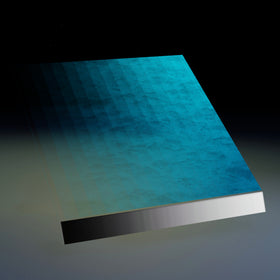
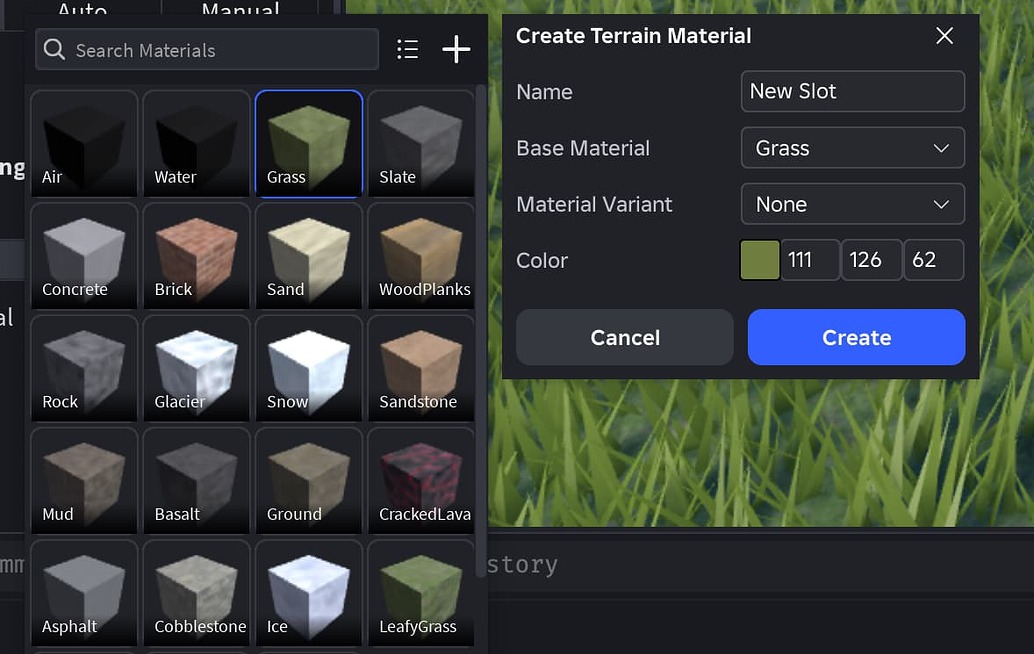
The full launch announcement, published on October 22, 2026, made Custom Terrain Materials a supported feature rather than an Early Access experiment. The system lets creators paint as many as 62 editable materials onto terrain in one place. Each slot can use a base terrain material, a custom color tint and, optionally, a MaterialVariant for custom textures.
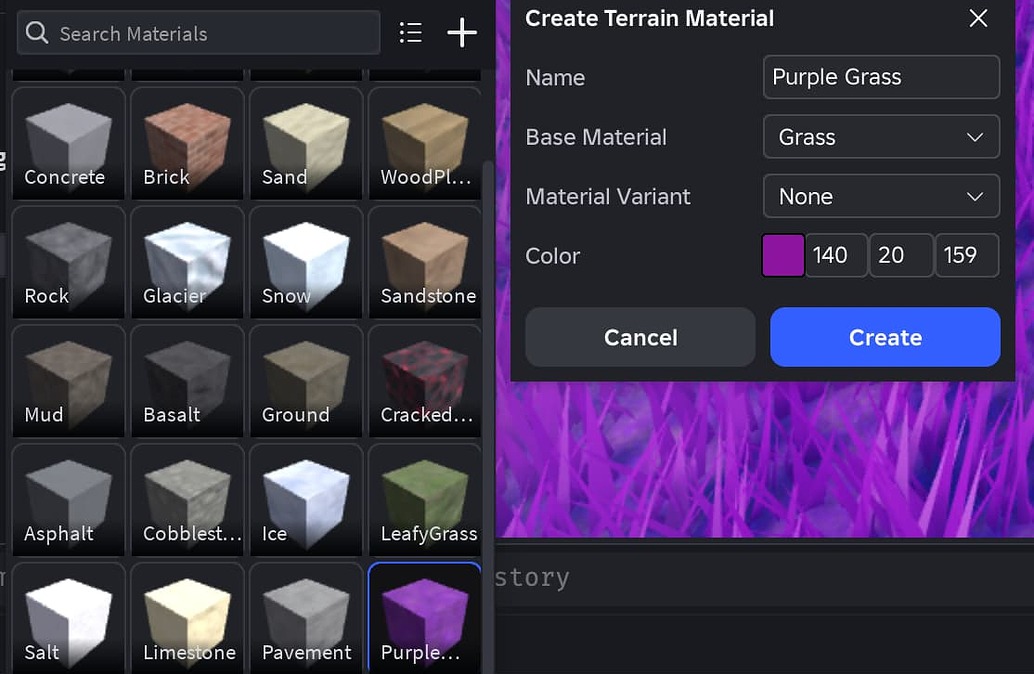
That makes it easier to build distinct environments without relying on one global color for every patch of grass or rock. A creator can make several grass shades for different biomes, add a more stylized look to a cave, or give separate areas of a large map their own visual identity.
The important difference: custom materials versus performance gains
Roblox's launch post also described improvements to terrain rendering, storage and delivery. Its announcement cited one benchmark with a 90% reduction in CPU memory overhead and a 45% reduction in meshing latency. Those figures are benchmark results, not a guarantee that every game will load a fixed percentage faster.
More importantly, Roblox later reported an iOS crash during terrain streaming. To protect players, it temporarily turned off the new terrain memory and performance optimizations in live experiences while a fix rolled out. The company said custom terrain materials continued to work in Studio and published games, and publishing larger terrain remained possible. Studio and Team Create were not affected by that temporary live-experience change.
In its October 27 update, Roblox reiterated that the performance improvements were available in Studio for the time being, while custom materials remained available to everyone when Expanded Terrain was enabled. As of November 5, 2026, I could not verify a later official announcement confirming that the live-player optimizations had been re-enabled. Treat the performance rollout as pending until Roblox confirms otherwise.

How to enable Expanded Terrain
Expanded Terrain is a per-place setting, so enabling it in one experience does not automatically enable it in every place in your account. Update and restart Roblox Studio, open the place you want to edit, and follow these steps:
- Select Workspace in the Explorer.
- Find Expanded Terrain in the Properties panel.
- Change the setting from Default to Enabled.
- When Studio prompts you, restart the place. If it does not reopen automatically, reopen it from the Studio start screen.
- Save or publish the place after checking that the custom materials appear correctly.
If you edited the place during the Terrain Early Access program, Roblox says you still need to enable Expanded Terrain for that place. Otherwise, custom materials may appear as grass.

How to create and manage custom materials
Open the Terrain Editor and choose a brush tool such as Paint, Draw, Fill or Sculpt. In the material picker beside Source Material, select the plus icon to create a slot. Give it a name, choose a base material, then optionally select a MaterialVariant or adjust its color. Use the selected material to paint, draw, fill or sculpt the terrain.
You can also use the Replace tool to swap one terrain material for another without changing the terrain's shape. To manage existing slots, open Window > 3D and choose the Terrain Materials Manager, or right-click a material in the picker and open the manager from there. Changes such as a color edit apply to terrain using that slot. If you delete a material that is still used by the terrain, the affected areas turn bright purple so you can identify and replace them.

Known limitations creators should check
- Team Create: Roblox warns that editing terrain in Team Create can introduce meshing or visual bugs. After changing Expanded Terrain in a Team Create place, exit the place and wait about 15 seconds before reopening it; the normal restart prompt alone may not apply the change.
- Thin terrain: With streaming enabled and a small streaming radius, terrain thinner than 16 voxels may disappear on clients or in playtesting. Roblox recommends adding thickness rather than making terrain thinner as a memory-saving trick.
- Material physics: Custom physical properties on a MaterialVariant are not yet respected by custom terrain material slots.
- Heightmap and colormap imports: Imported results may differ from older terrain workflows, and colormap imports are more sensitive to material colors.
- Performance rollout: Do not assume the new live-player memory and streaming optimizations are active until Roblox posts a confirmed rollout update.

What this means for Roblox creators
The practical win today is artistic control: creators can build richer-looking environments and use multiple material variations in a single place. It is worth testing the new slots on a copy of a live project, checking thin geometry and Team Create behavior, and validating the result on the devices your audience uses.
The performance work still matters, but the rollout distinction is essential. Roblox's original benchmark numbers should not be presented as guaranteed live-game improvements while the company has said those optimizations were temporarily disabled for published experiences. Watch the official announcement for a fresh confirmation before changing player-facing performance claims.
Frequently asked questions
Are Custom Terrain Materials fully released?
Yes. Roblox moved them out of Early Access on October 22, 2026. They can be used in published experiences when Expanded Terrain is enabled for the place.
How many custom terrain materials can I use?
Roblox documents up to 62 editable terrain material slots. Water and Air are not counted because they are read-only.
Do custom terrain materials work in published games?
Yes. Roblox says custom terrain materials continue to work in Studio and published experiences. The place must have Expanded Terrain enabled.
Are the new terrain performance improvements live for every player?
Do not assume so. Roblox temporarily disabled the new memory and performance optimizations in live experiences after an iOS crash was found. The latest official status I could verify for this article still limited those optimizations to Studio.
Why do custom materials sometimes appear as grass?
A place edited during the Early Access program may still need Expanded Terrain switched to Enabled in Workspace. Restart and reopen the place after changing the setting.
Official sources and further reading
- Roblox Developer Forum: Full Launch — Custom Terrain Materials and Performance Improvements
- Roblox engineering update on the temporary live-experience performance rollback
- Roblox Creator Hub: Custom Terrain Materials
- Roblox Creator Hub: Environmental Terrain
Reporting note: This article reflects official Roblox documentation and Developer Forum updates checked on November 5, 2026. Rollout status and known issues can change. By Shivam Das.